
You’ve assigned a user a Windows device in the Device Enrollment Control and ran into the next steps: “Provision an Entra account for this user”. What happens next?
The user has a Google accountSetting up Account Sync1. Create a user group in Google Admin for Windows users2. In Zip, set up Account SyncTroubleshootingThe user has a Google Account and you already set up Account SyncThe user has an Okta account
The user has a Google account
If your business uses Google Workspace as the primary IDP but uses Windows devices, we have an Account Sync feature to automate Microsoft Entra ID account creation to easily manage Windows devices.
Setting up Account Sync
Prerequisite: Set up Google and Entra ID/Azure AD providers in Zip following the Identity Provider docs.
When setting up Google Workspace, make sure that you include the Customer ID field or else we won’t be able to sync accounts.
1. Create a user group in Google Admin for Windows users
An admin in your Google workspace must create a new user group in Google. Add any users who use Windows devices to this group. For more details on how to do that, see Google documentation here.
2. In Zip, set up Account Sync
Go to https://zipsecinc.cc/organizationsettings?tab=providers and scroll down to the Entra ID Account Sync section. Click Edit, and fill in the appropriate fields:
- Provider to sync from: Your Google Workspace provider
- Group of accounts to sync: The Windows user group you just created in Google Workspace
- Provider to sync to: Your Azure AD/Entra ID provider
- Domain for new accounts: This is the email domain you want for the provisioned Entra accounts, typically
< your Google domain >.onmicrosoft.com
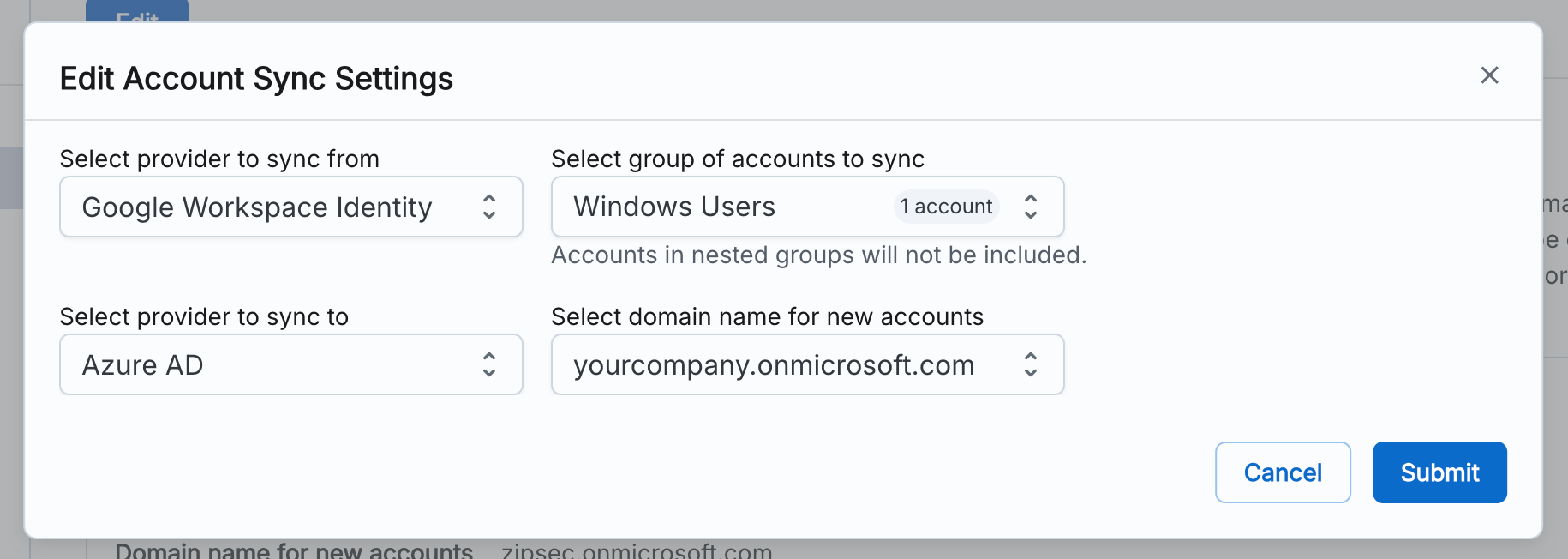
Click submit.
This process will auto-provision Entra accounts for any users in the Windows User group and assign Windows devices for them in the Enrollment Control. The Entra accounts will be created with the same local-part as the Google accounts - so if the Google account is
user@<your Google domain> , then the Entra account will be user@<selected Entra domain>.Once the accounts are created, they will be assigned Enterprise Mobility + Security E3 licenses to allow users to enroll their device with Intune.
Troubleshooting
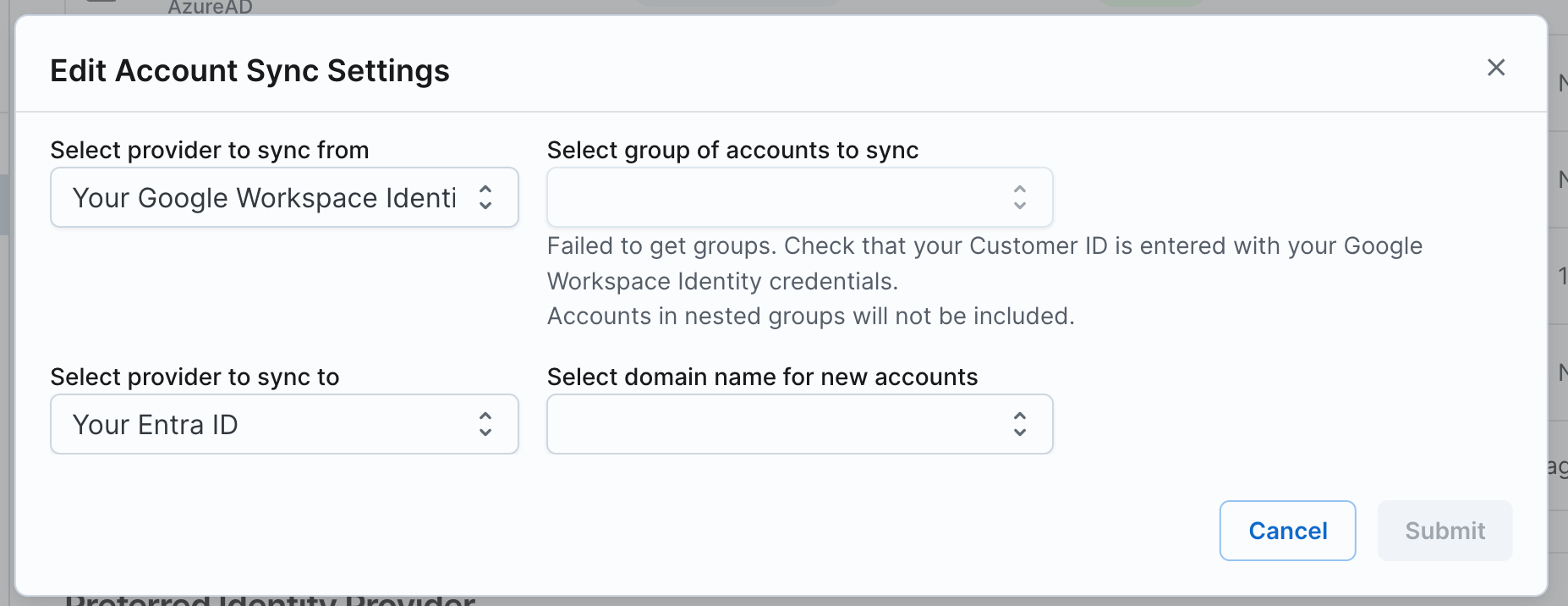
If you see the following message and are unable to select a group for the “Select group of accounts to sync” field, that means you are missing the Customer ID for your Google provider.
Edit your Google provider setup and follow the steps here to ensure you’ve added your Customer ID. After that, If you retry setting up Account Sync, you should see your Google user groups populate.
The user has a Google Account and you already set up Account Sync
In this case, go to your Google Admin console and make sure the user is in the Windows user group that is synced to Entra.
The user has an Okta account
We do not yet automate account sync between Okta and Entra. To resolve this issue, you will need to:
- Create a new user in Entra following the docs here
- Assign the user a license following the docs here