
This process was tested on a Windows 11 Pro computer that had GCPW and Windows Device Management installed.
Before enrolling Windows devices with Zip, all existing management must be removed. Only one device management tool (”MDM”) may be active at a time, and attempting to enroll Windows Devices with Zip while they are still enrolled in with Google can result in failed enrollments and untimely syncs. After un-enrolling with Google, users can re-enroll with Zip following the process outlined
Un-enrollment from Google Management.
Un-enrollment from Google Management can be done entirely from the Google Console with no user impact. To unenroll Windows Devices that are managed by Google, but keep GCPW active so users may use network credentials, you can do the following:
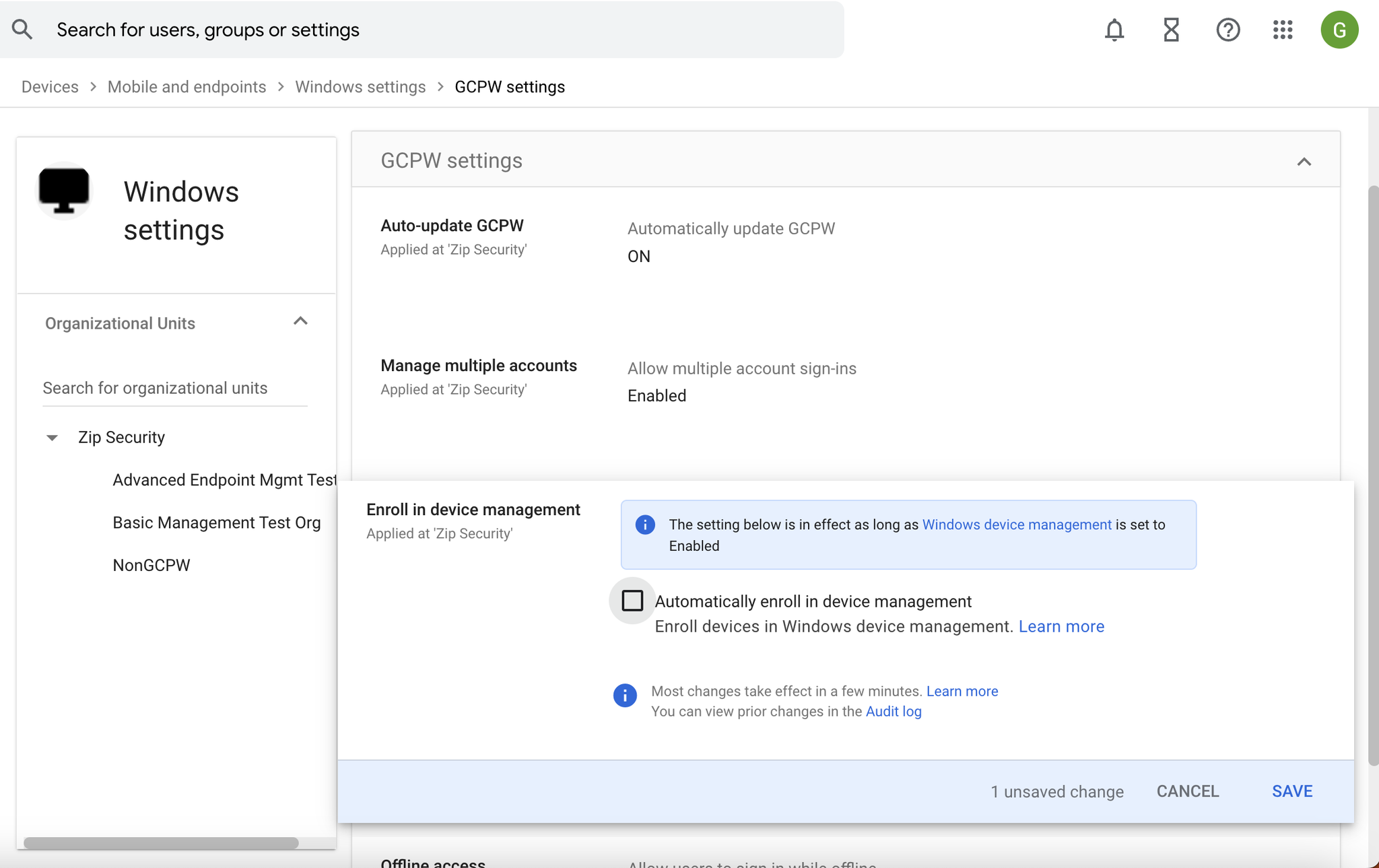
- First, make sure that users will not be re-enrolled with Google on log in. Do this by going to Devices > Mobile and endpoints > Windows settings > GCPW settings in the Google Admin Console, and toggling “Enroll in Device Management” off. See below:
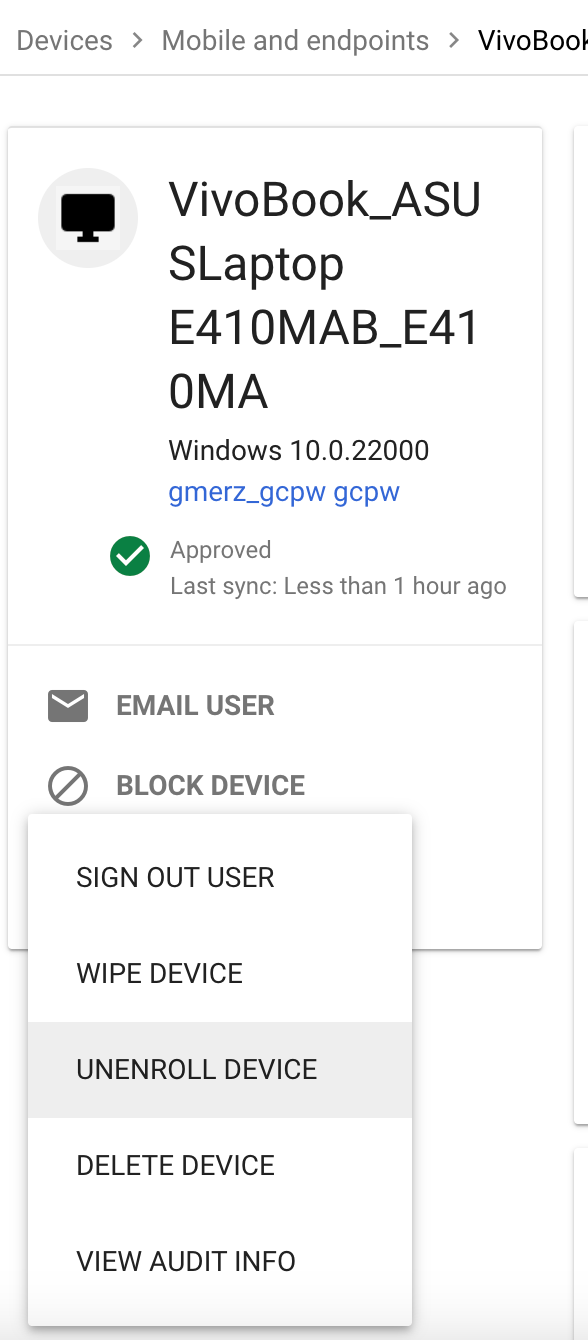
- Next, go to to Devices > Mobile and Endpoints and select the device you would like to unenroll. Under the device name, click the three dots, and select “Unenroll device”
- Have the user sign out and sign back in to trigger the un-enrollment and to confirm GCPW still works
The user may now re-enroll with Zip.