
What can my company see about my computer now that my device is managed?
Here’s a quick list of the types of things we will use device management to do:
- Understand which computers we own, and which computers are connecting to our corporate resources
- Understand if we have computers on software versions with critical security vulnerabilities
- Understand if our computers are configured securely, e.g. utilizing important features like Disk Encryption
- Protect the data on our devices if they are lost or stolen
Here are some things we will not use device management to do, and that device management cannot do
- MDM does not provide the ability to view the network traffic on your device, see what sites you’re visiting on the internet, or read any of the personal data you might exchange with third party sites (like passwords or credit card numbers)
- We will never configure MDM to report data on how employees are using their computers (like how much time employees are spending on their computers, or which applications they’re spending their time in).
When the screen lock control is enabled, can users disable the screen saver function?
For SOC2 compliance, we follow the standards set by the major compliance companies (Vanta, Drata). To check the "15 minute screen lock box" required, we need to set a screen saver policy (you can read a bit about what vanta expects here).
A limitation of setting this policy in Jamf Pro is that setting the screen lock requires setting the screen saver.
How can I remove a user’s console access?
When a user no longer needs access to the Zip Console, you can remove them from your organization within the console by following these instructions:
- Click the checkbox on the left-hand side for the user you’d like to remove:
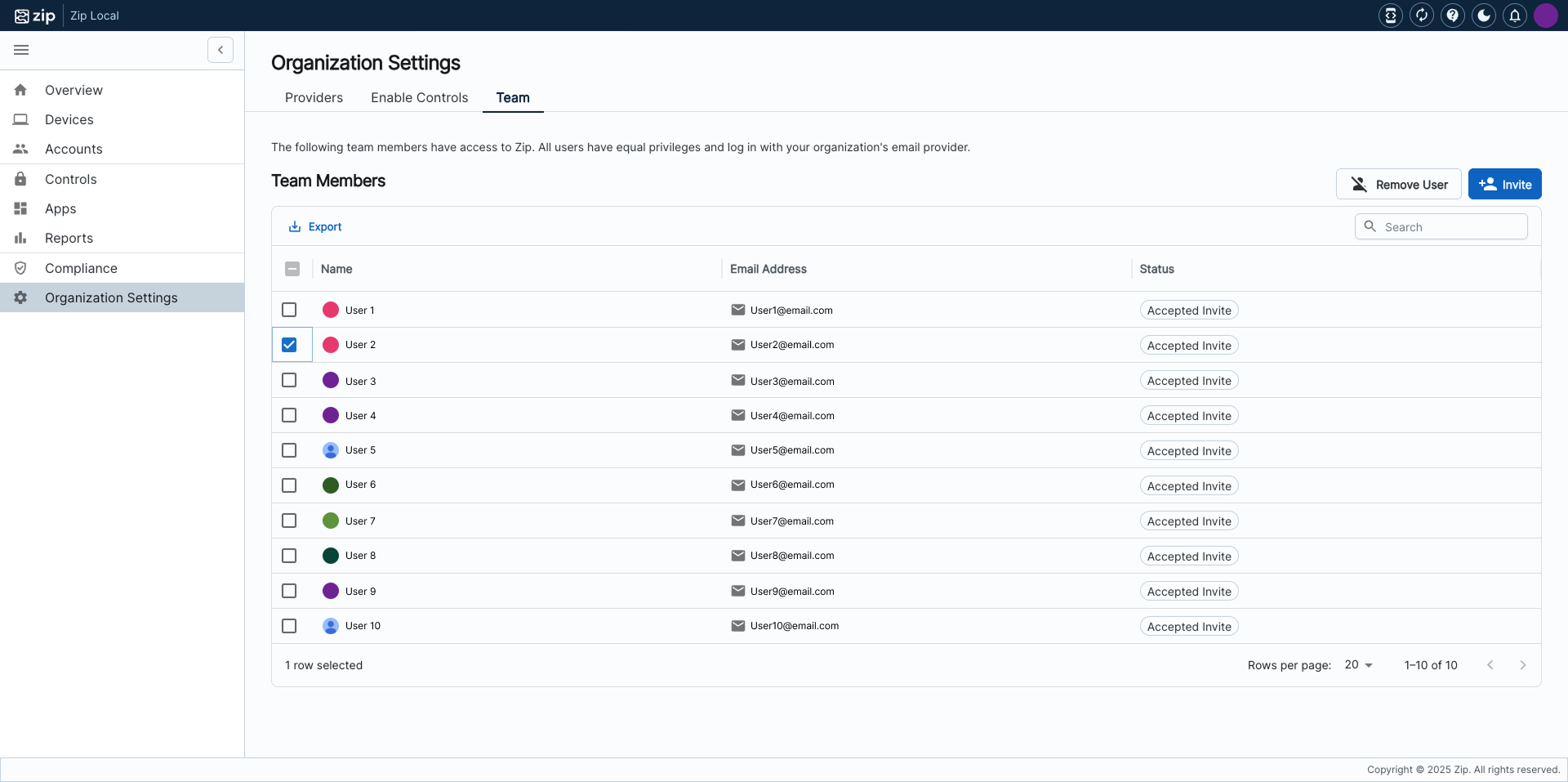
- Click the Remove User button on top-right hand side of the table
- Confirm that you want to remove the selected user by selecting Remove User
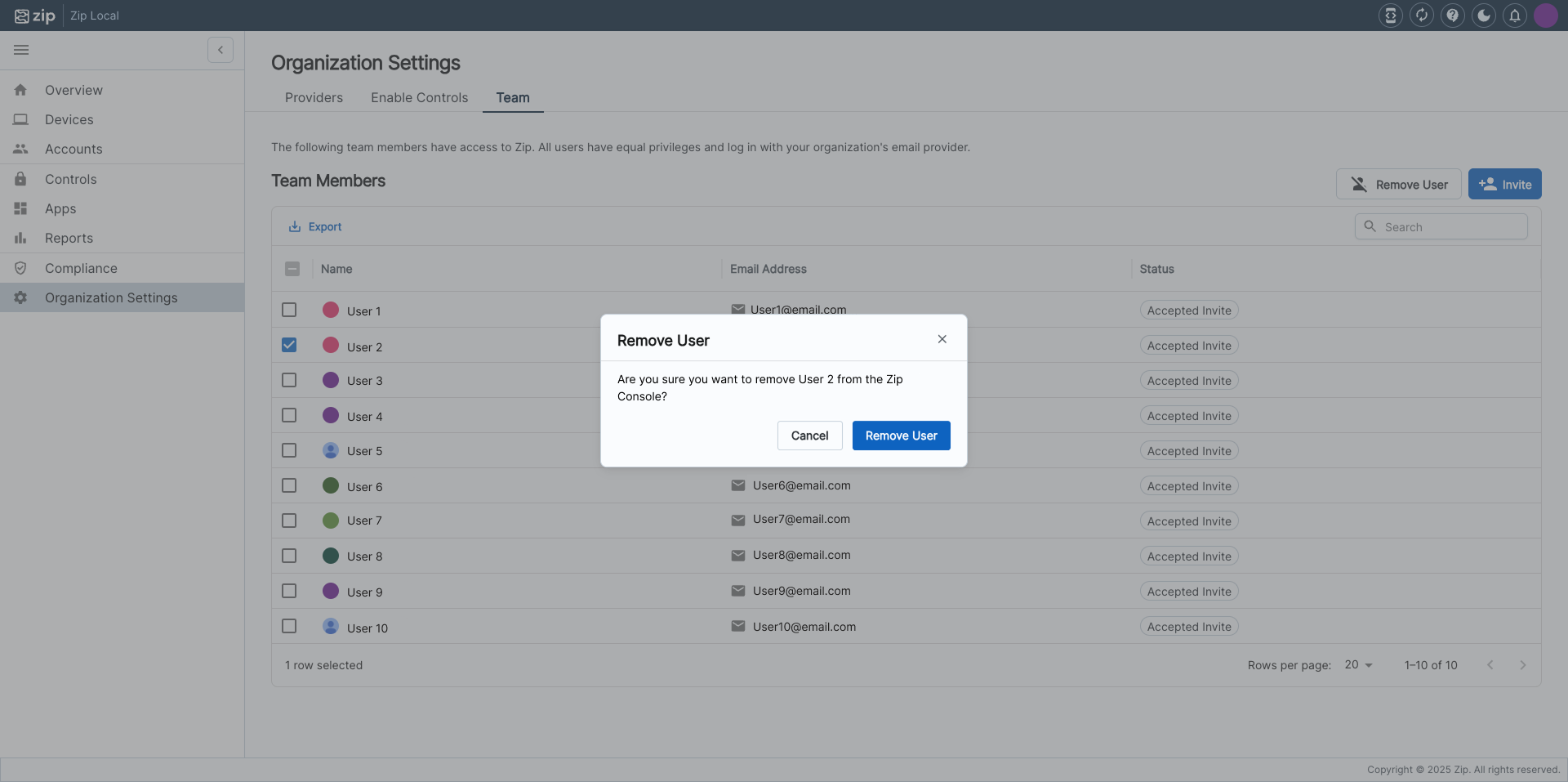
Once confirmed, the selected user will be removed from your organization. Note that the currently logged in console user cannot delete themselves.
I am using the Manage Chrome Extensions control, but I also want to install Chrome extensions on a subset of users.
This is not currently supported in the Zip Console, but you can assign Chrome extensions to a subset of users in the Google Admin Console while also using the Zip security controls.
1. Create a security group in the Google Admin Console. (This is the same as a normal group, but on the first page, under Group labels, make sure to check 'Security').
2. Open the sidebar and click 'Chrome browser' -> 'Managed browsers'. Select all of the browsers that you want to add to the group, then click 'add to group' at the top of the table.
3. Open the sidebar and click 'Chrome browser' -> 'Apps & extensions'
4. Expand the 'Groups' section, then search for and click on the group you created
5. Hover over the yellow plus button, then click 'Add Chrome app or extension by id' and enter in the extension id. Click 'save'.
6. On the next screen, change the installation policy to 'Force install'. Click 'Save' on the top right of the page.