Microsoft Entra
- Navigate to Microsoft’s Security Info page
- The first time an account logs in to this page, depending on the security settings of the Entra tenant it should be prompted to add multifactor authentication methods.
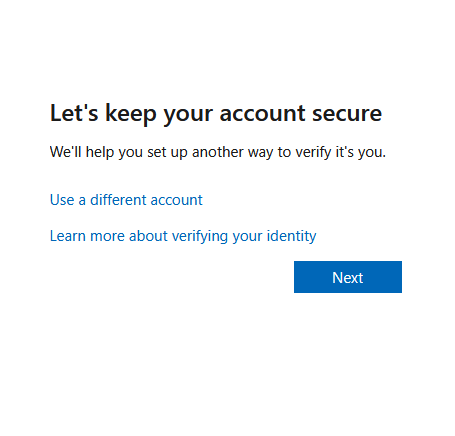
- Microsoft will default to supporting Microsoft Authenticator, but it is also possible to use other authenticators if your organization has a preference.
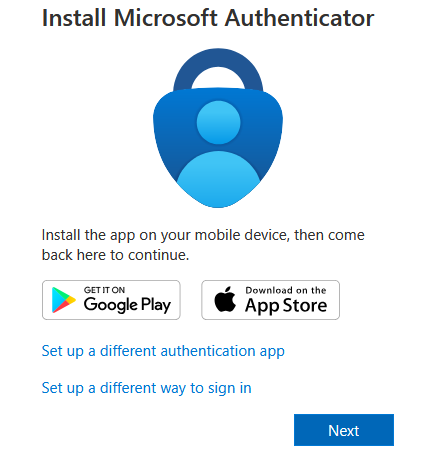
Microsoft Authenticator
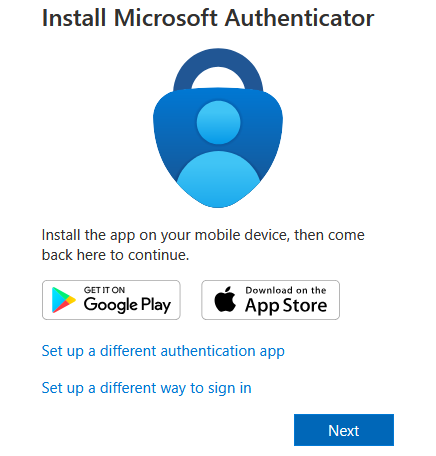
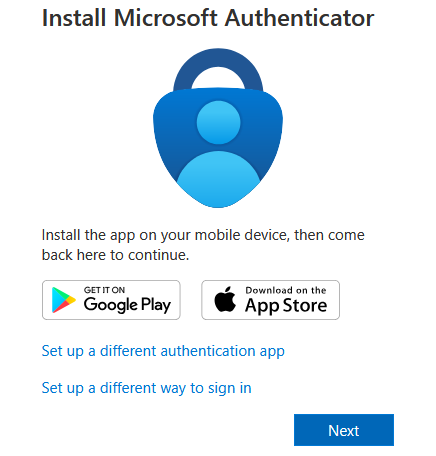
- Visit the relevant app store to download & install the Microsoft Authenticator app on your phone.
- Click Next to proceed with setting up Microsoft Authenticator
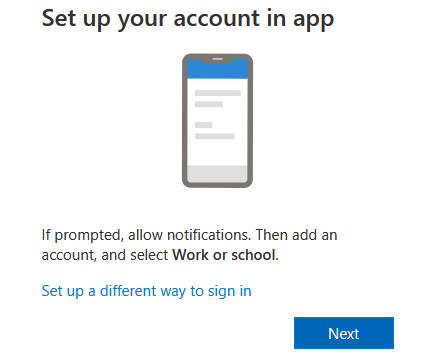
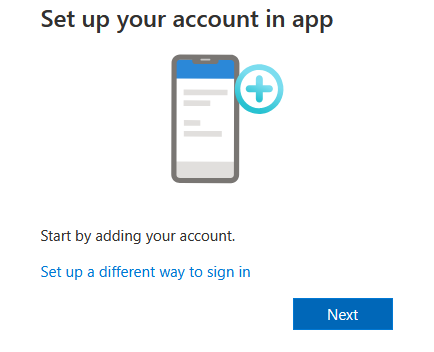
- On your phone, launch the Microsoft Authenticator app & click the plus sign at the top-right to add a new account.
- Choose “Work or school account”, then “Scan a QR code”
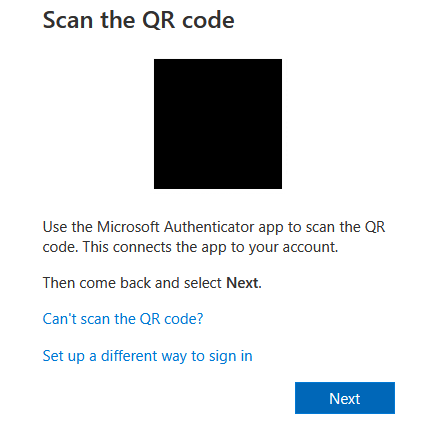
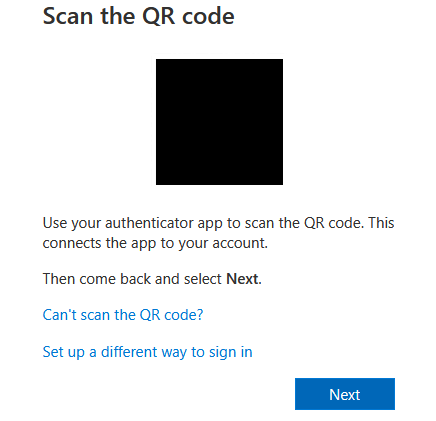
- On the computer, click Next to display the QR code. Note that the QR code expires after a couple of minutes.
- After scanning the QR code, the Microsoft Authenticator app will show a message that the account has been successfully added and you should see a new entry in the list of registered accounts.
- On the computer, click Next to proceed to trigger a Microsoft Authenticator prompt to validate the successful setup.
- Type the displayed number into Microsoft Authenticator
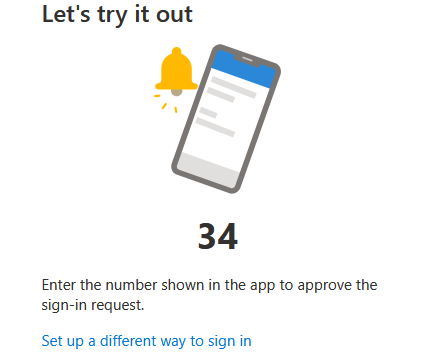
- Once successfully authenticated, you will see a success screen
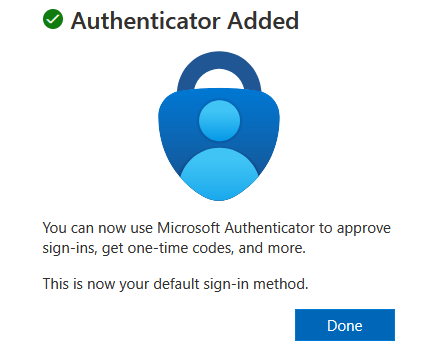
- Congratulations, your account is now secured against password theft & re-use!
1Password One Time Password
- Click the “Set up a different authentication app” option
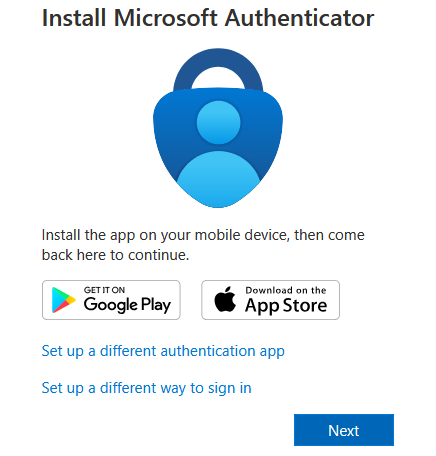
- Create a 1Password entry for this account, then click Next
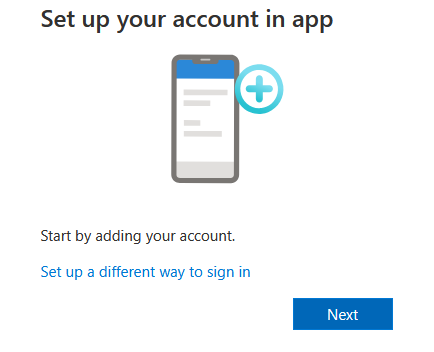
- When prompted to scan the QR code, if you have the 1Password browser extension installed you can simply open the browser extension while the QR code is displayed. Clicking the 3 dots menu in the top right of the 1Password entry will allow you to scan the QR code & automatically add a rotating One Time Password to the 1Password entry
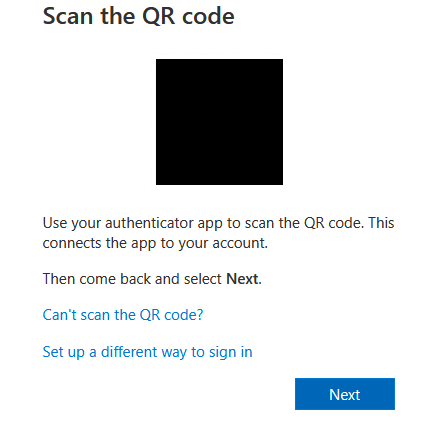
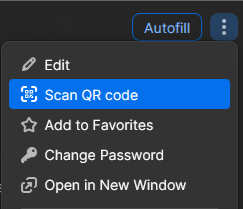
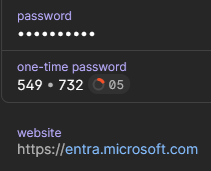
- Alternatively, if you don’t have the browser extension installed, click the “Can’t scan the QR code” option to generate a code that you can type in
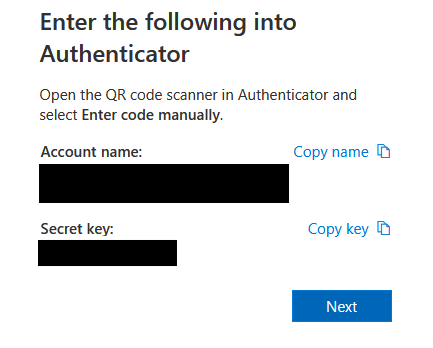
- Edit the 1Password entry to add a “One-Time Password” field & paste in the secret key from the previous step
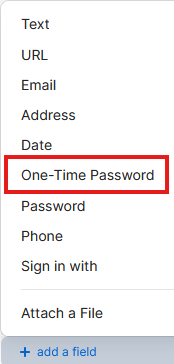
- Once you save the 1Password entry, you should now have a rotating code that will serve as your MFA code
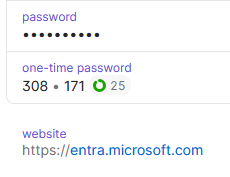
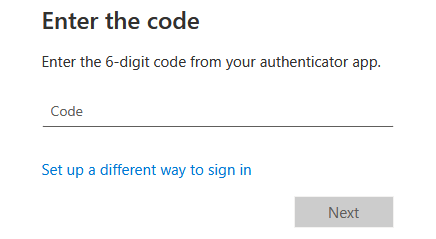
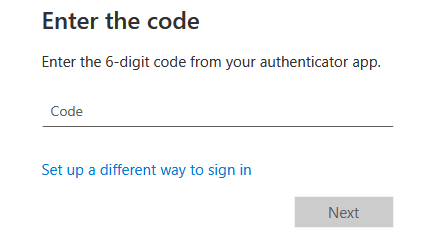
- You’ll be prompted to enter one of these rotating codes to confirm that everything is synced
- Once successfully authenticated, you will see a success screen
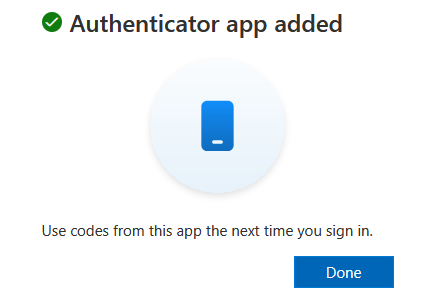
- Congratulations, your account is now secured against password theft & re-use!
Google Authenticator
- Visit the relevant app store to download & install the Google Authenticator app on your phone.
- Click the “Set up a different authentication app” option
- On your phone, launch the Google Authenticator app & click the plus sign at the lower-right to add a new account. Choose the “Scan a QR code” option
- On the computer, click Next to display the QR code. Note that the QR code expires after a couple of minutes.
- After scanning the QR code, you should see a new entry in the list of registered accounts.
- On the computer, click Next to trigger a prompt for the rotating passcode
- Once successfully authenticated, you will see a success screen
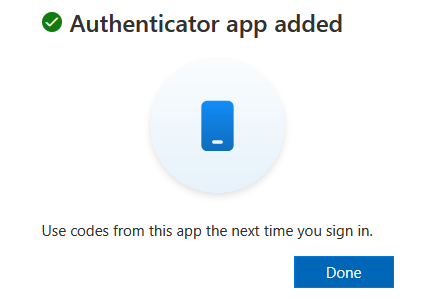
- Congratulations, your account is now secured against password theft & re-use!
- Navigate to the Google account Security & sign-in screen
- Click the “2-Step Verification” button in the center. This will trigger a re-authentication, after which you will then be presented with a list of all currently registered authentication methods (basic account password is not listed)
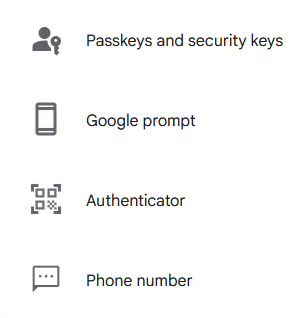
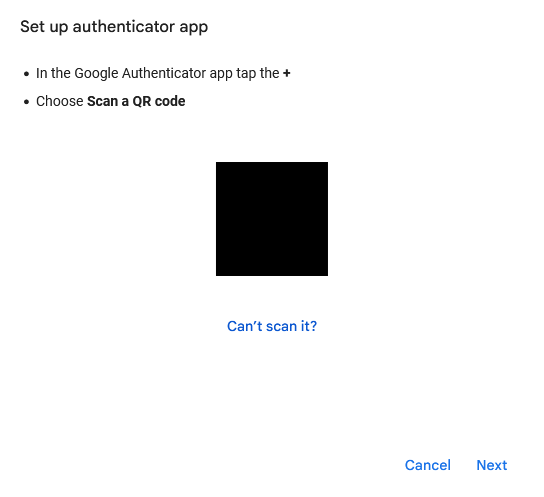
- Click Authenticator to generate a QR code which can be input into the authenticator of your choice.
- Visit the relevant app store to download & install the Google Authenticator app on your phone.
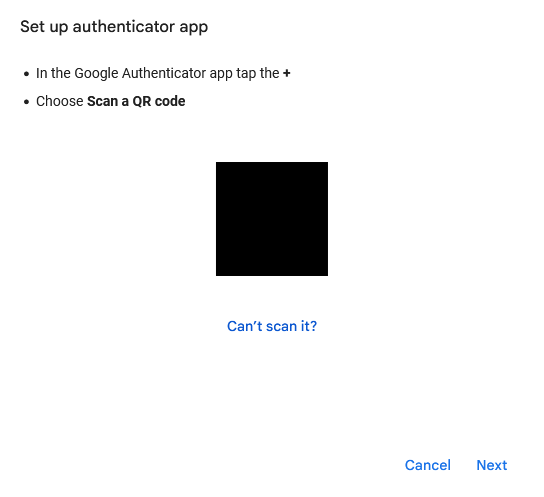
- On your phone, launch the Google Authenticator app & click the plus sign at the lower-right to add a new account. Choose the “Scan a QR code” option
- After scanning the QR code, you should see a new entry in the list of registered accounts.
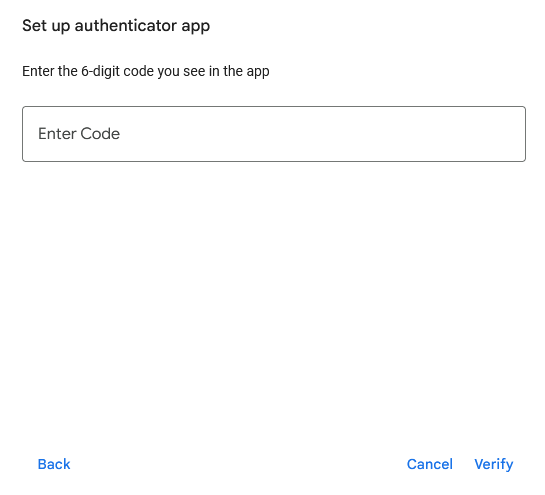
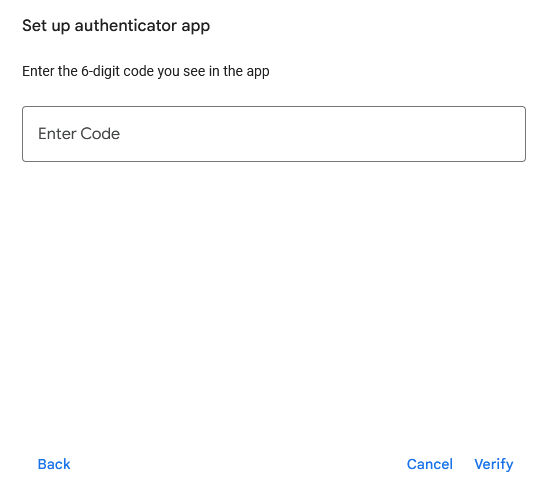
- Click Next to proceed to the code prompt
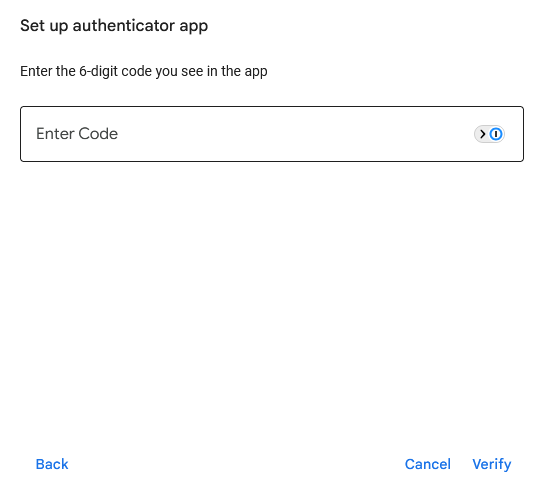
- Enter the current code displayed by the Google Authenticator app for this account & click Verify
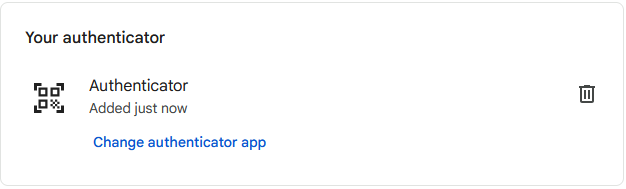
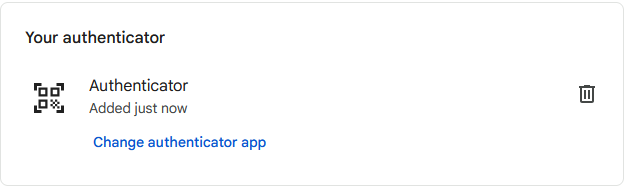
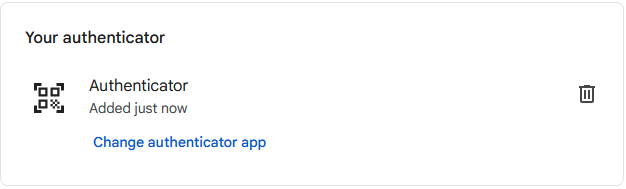
- Once successfully authenticated, you will see a notice that the Authenticator has been added
- Congratulations, your account is now secured against password theft & re-use!
- Create a 1Password entry for this account
- When prompted to scan the QR code, if you have the 1Password browser extension installed you can simply open the browser extension while the QR code is displayed. Clicking the 3 dots menu in the top right of the 1Password entry will allow you to scan the QR code & automatically add a rotating One Time Password to the 1Password entry
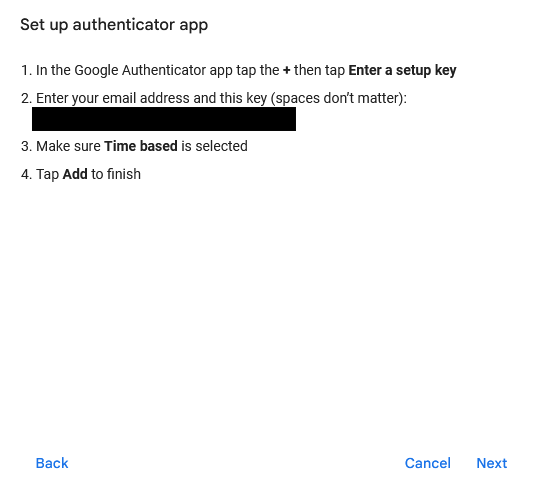
- Alternatively, if you don’t have the browser extension installed, click the “Can’t scan it?” option to generate a code that you can type in
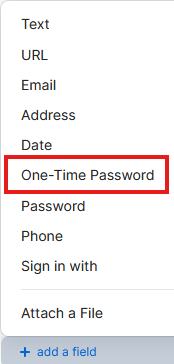
- Edit the 1Password entry to add a “One-Time Password” field & paste in the secret key from the previous step
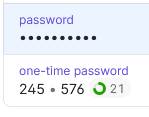
- Once you save the 1Password entry, you should now have a rotating code that will serve as your MFA code
- Click Next to proceed to the code prompt
- Enter the current code displayed in the 1Password entry for this account & click Verify. If you have the 1Password browser extension installed, you can use the 1Password option at the right side of the code box to select the relevant account & automatically fill in the current code
- Once successfully authenticated, you will see a notice that the Authenticator has been added
- Congratulations, your account is now secured against password theft & re-use!
- Visit the relevant app store to download & install the Microsoft Authenticator app on your phone.
- On your phone, launch the Microsoft Authenticator app & click the plus sign at the top-right to add a new account.
- Choose “Work or school account”, then “Scan a QR code”
- After scanning the QR code you should see a new entry in the list of registered accounts.
- Click Next to proceed to the code prompt
- Enter the current code displayed by the Microsoft Authenticator app for this account & click Verify
- Once successfully authenticated, you will see a notice that the Authenticator has been added
- Congratulations, your account is now secured against password theft & re-use!
Google Authenticator
1Password One Time Password
Microsoft Authenticator