
Auto-enforcement of a control means that upon device enrollment, the device is also by default enrolled in the policy. This helps to streamline devices staying compliant across multiple controls, and it also helps from a management perspective by reducing the manual action required to get users to be compliant with controls.
Below we outline how you can turn on auto-enforcement for specific controls.
Setting Parameters for Controls
We offer the ability to manually edit and change the parameters for individual controls. Parameters are set to a default that aligns with industry best practices, but you are able to edit these as you wish.
- Navigate to https://zipsecinc.cc/modules
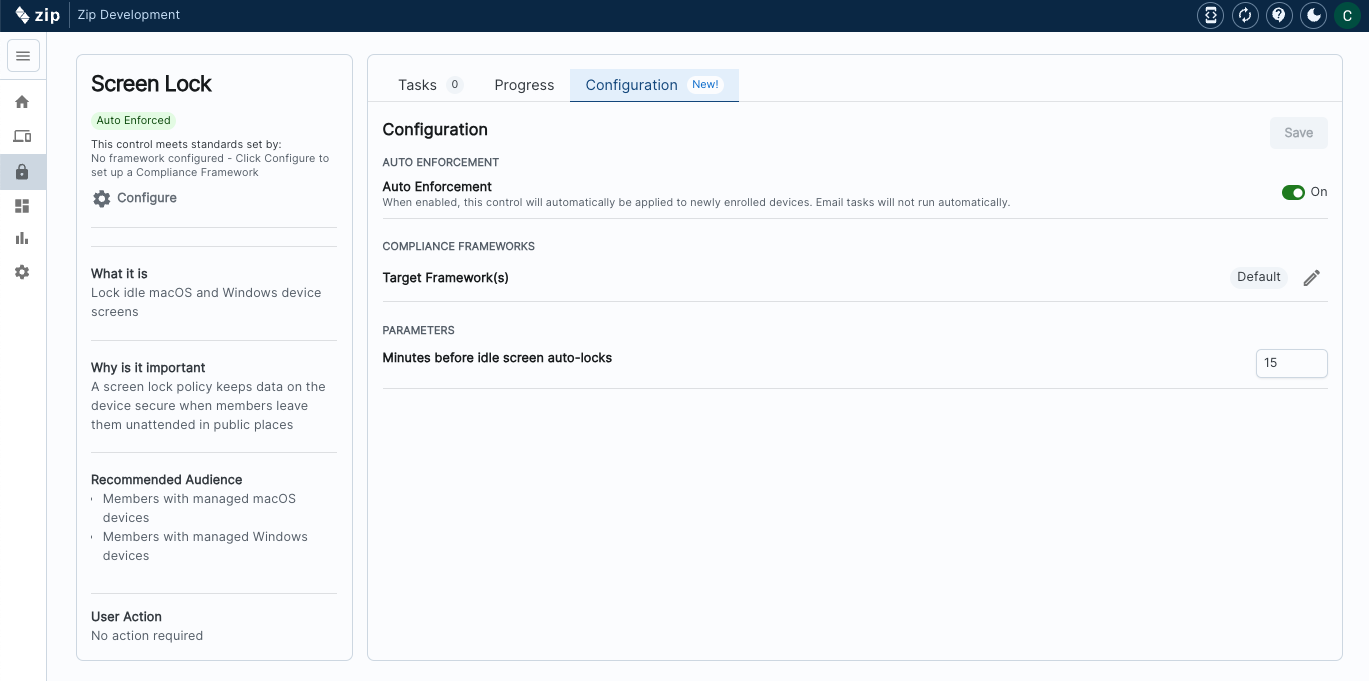
- Click into the control you’re interested in, e.g. ‘Lock Screen’
- In the navigation bar along the top, click the ‘Configuration’ tab:
- Edit each parameter as you wish
- Turn on auto-enforcement
- Hit save
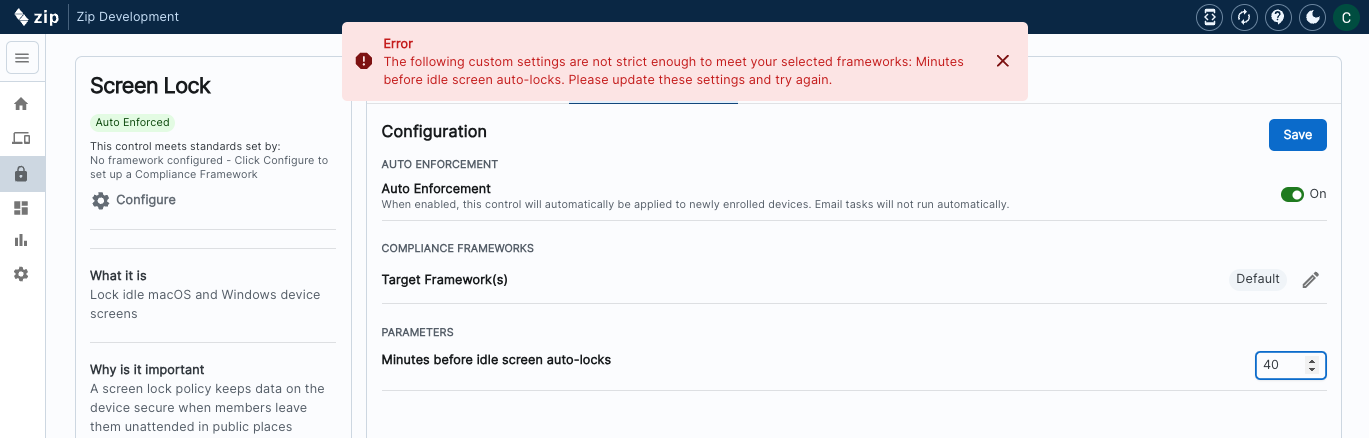
Note! In order to ensure you remain compliant with any compliance frameworks you have enabled, an error message will appear if you have relaxed the parameters too much.
- If you see the above error message, adjust the parameters to be more strict, until the error message goes away.
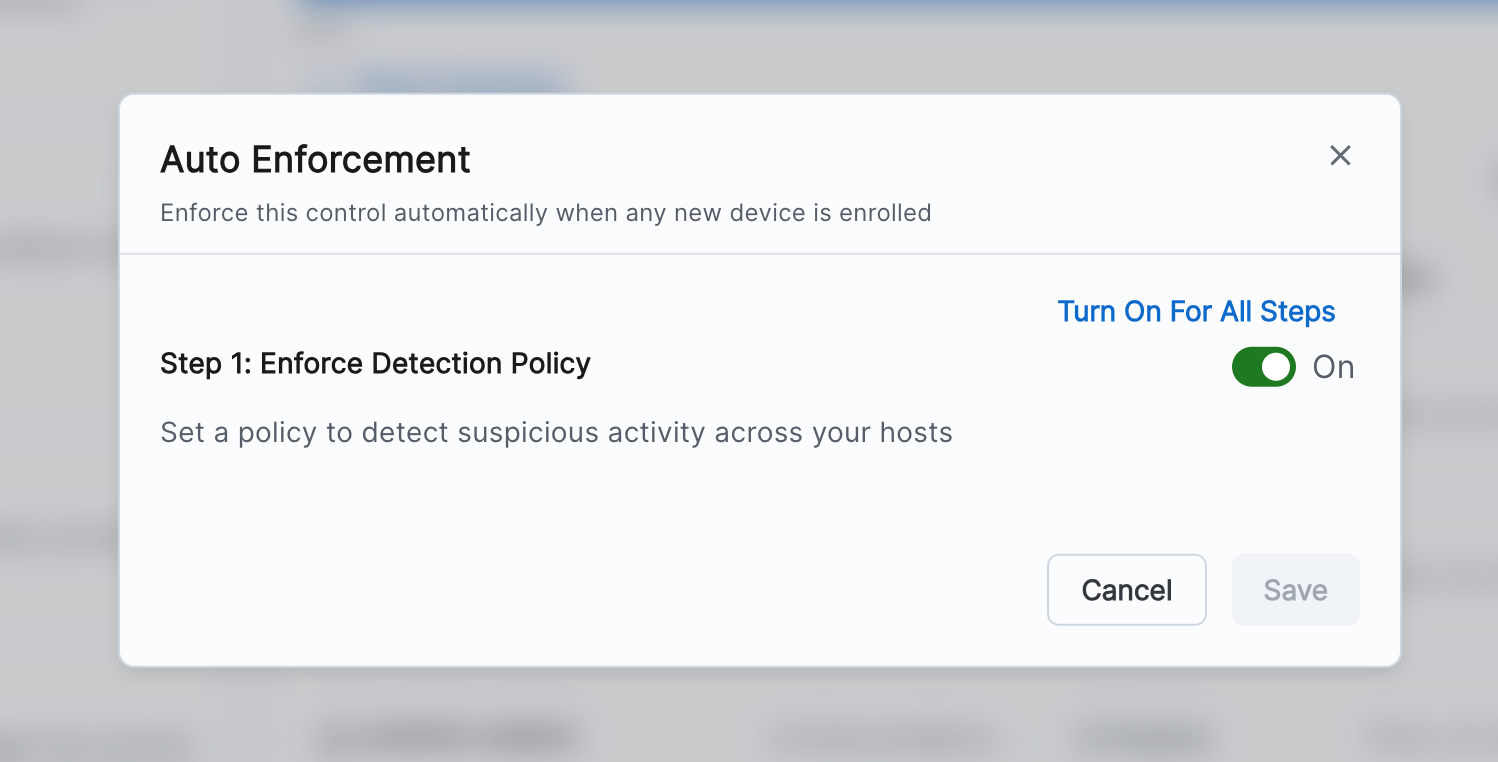
Instructions for turning on Auto-Enforcement
- Navigate to https://zipsecinc.cc/modules
- Scroll down to the control you wish to update.
- On the Left hand side, under ‘auto enforcement’ hit ‘edit’ and toggle on auto enforcement
- You’re done!
FAQs
What does turning on auto-enforcement mean?
- Auto-enforcement of a control means that upon device enrollment, the device is also by default enrolled in the policy. This helps to streamline devices staying compliant across multiple controls, and it also helps from a management perspective by reducing the manual action required to get users to be compliant with controls.
What if I want to edit some of the parameters of individual controls?
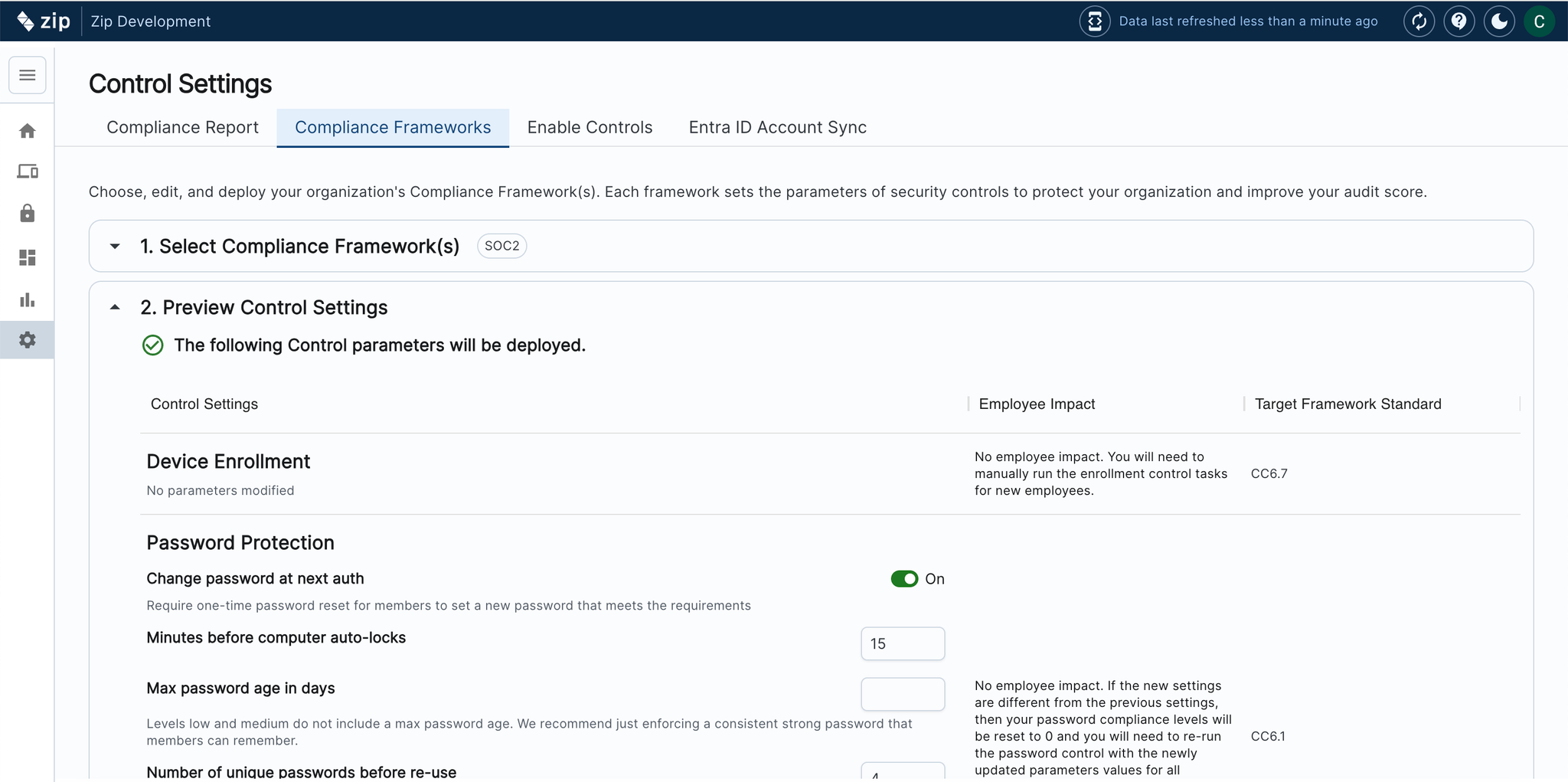
- We set default parameters for controls (e.g. length of time before screenlock) that align with best security practises. However, we also recognise the importance of being able to make these customizable to the needs of your organization. Follow the below instructions to review and edit control parameter:
- In the Controls setting tab, navigate to —> Compliance Frameworks
- Select step 2 ‘Preview Control Settings’
- Scroll through to the control you would like to edit, and make any changes you’d like to.
- Hit ‘Save and Apply’
What Does Auto-Enforcing the Activation Lock Control Mean?
The Activation Lock control provides a solution to the challenge faced by IT-teams of dealing with Apple devices that have ‘Activation Lock’ turned on. This prevents them from recovering a wiped device without a past employee's authority. If not properly managed, returned laptops are at risk of being unusable, and resulting in a massive waste of money for a company. Additionally, there are security considerations with activation lock - a corporate device should be managed by an IT team, not by a individual, and actions like device locking and wiping should sit with the IT team, and not the individual.
The ‘Activation Lock’ control, that helps organizations ensure all Apple devices have activation lock disabled. It has 3 key features / allows a few things:
- Prevent activation lock from being turned on without preventing users from using personal imessage accounts
- monitor activation lock usage
- automatically notify users to turn off activation lock
To Turn it on:
- Navigate to https://zipsecinc.cc/modules
- Scroll down to the control you wish to update.
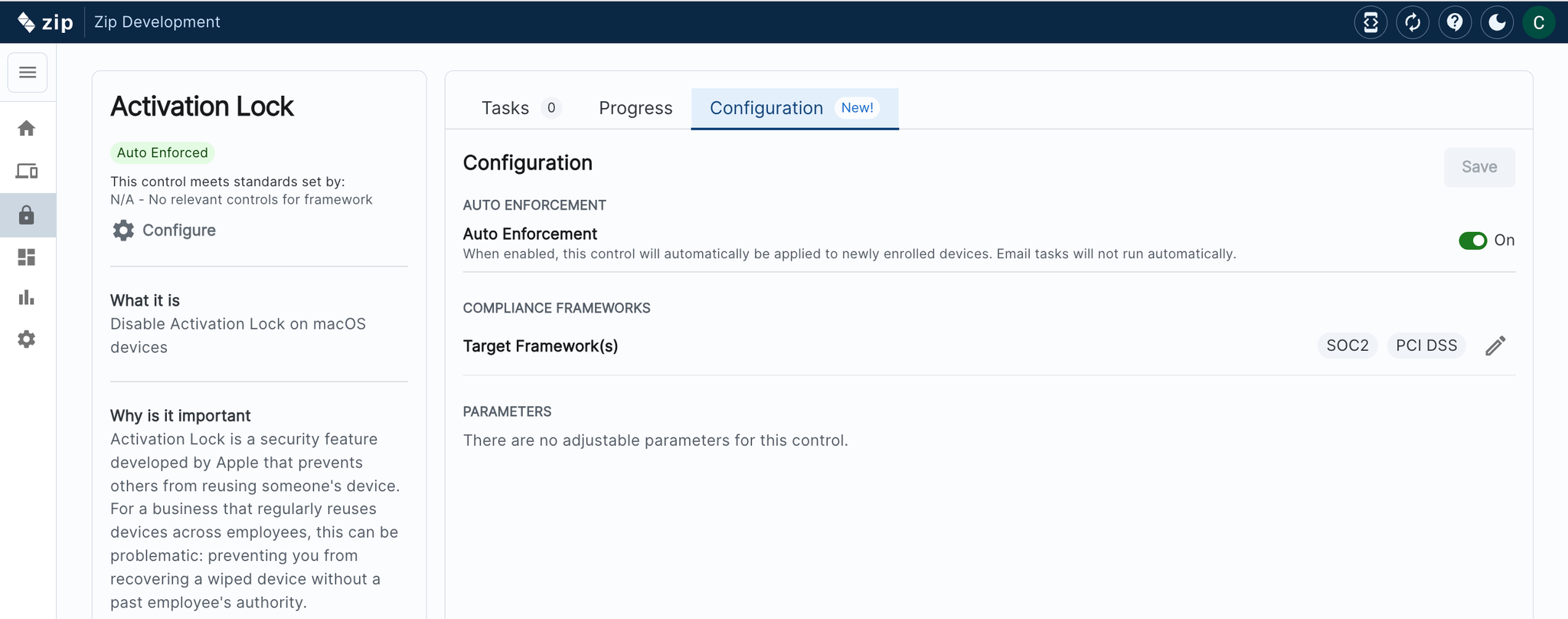
- Navigate to the ‘Configuration’ tab and toggle Auto Enforcement to ‘On’
- You’re done!
Questions? Here’s how to reach us:
- Email: info@zipsecinc.cc