
If you have a brand new windows device, follow the below instructions to ensure it is enrolled correctly into Intune:
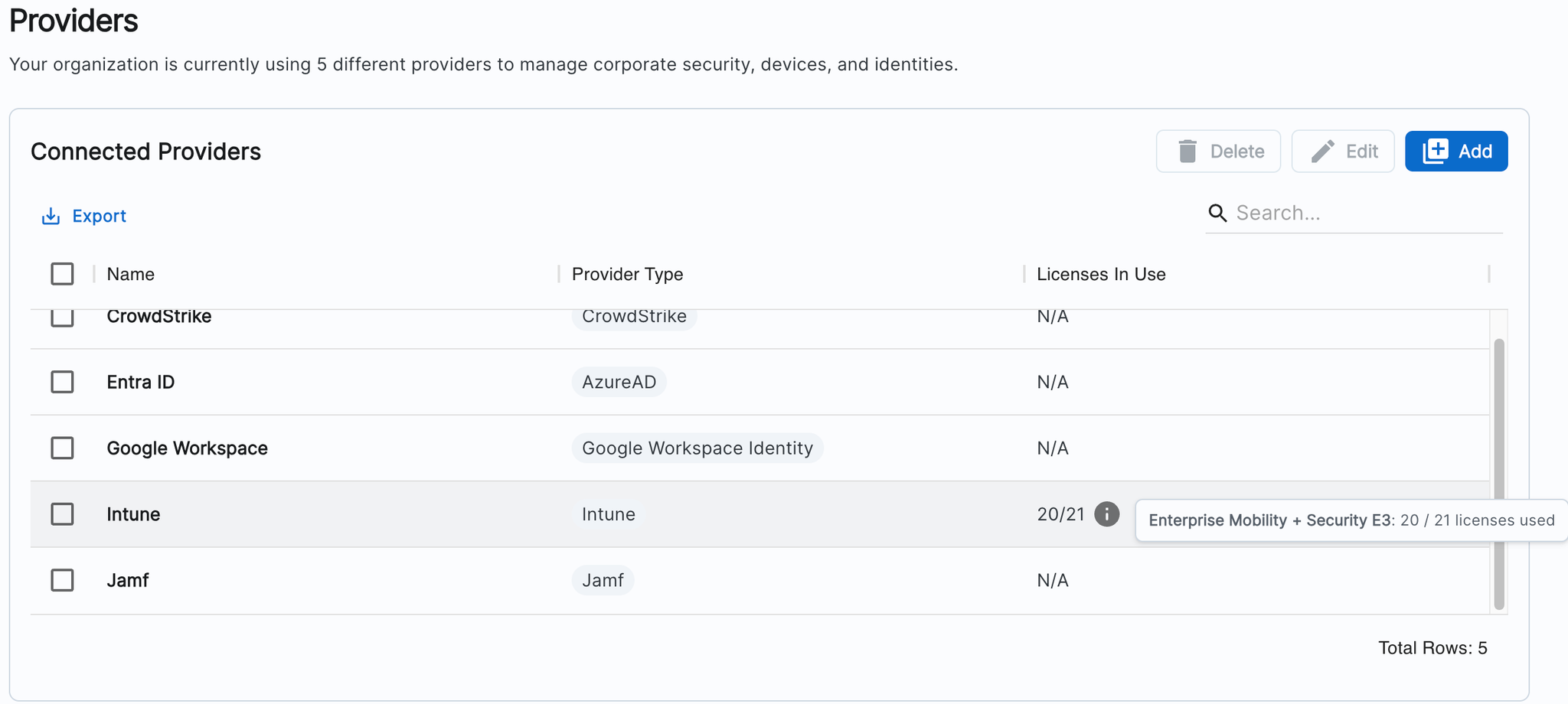
- Make sure you have a license available for the new user. You can check your license count at zipsecinc.cc/organizationsettings. You can see your license count in the third row of the table, as shown below (we have 1 license left below):
- If you need to purchase a new licenses:
- If we are purchasing licenses on your behalf through our reseller, please reach out to us at info@zipsecinc.cc and we can go ahead a do that for you.
- If you purchase your licenses directly, follow the instructions here to complete that.
- Once you’ve confirmed there are enough licenses, create a user in admin.google.com, and add them to the group (in Google). You can see which Google group you’ve configured to sync automatically in Zip at the bottom of the page here: https://zipsecinc.cc/organizationse
- Click the sync button in the top right-hand corner of the Zip Console to automatically sync the account (the swirling arrows shown here)

Once the users account has synced, you should see them in https://zipsecinc.cc/organizationsettings. You can click on their entry in their table to go to their Google account, click the “Account synced to” icon, and reset their password on the screen. Ask them to log in to their windows device with their new synced account and the password you just reset.
Questions? Here’s how to reach us:
- Email: info@zipsecinc.cc