At Zip, we are actively working on new Controls that help manage and secure Chrome browsers. See below for an overview of each control, with relevant information of how to action ensuring your organization is compliant.
Chrome Browser Management
First, to get started with Chrome browser management, check out the docs here on how to enable it in the Google Admin Console.
This control allows you to enroll Chrome browsers on managed devices in Chrome browser management. Chrome browser management allows you to set security and IT policies on the browsers, and see and manage extensions that are used.
After enrolling the browsers in management, this control will also apply several basic policies to them:
- Enforce safe browsing to protect from known dangers on the web
- Update policies to enforce that managed Chrome browsers update regularly
- Password re-use policies to detect when users enter their password on a different website.
- Password Protection Warning controls if users receive a warning whenever they re-use the specified password, if they receive a warning when they reuse it on sites that Chrome deems to be suspicious phishing websites, or if they do not receive a warning.
- Password Protection Change Password URL sets the URL users are directed to to reset their password.
- Password Protection Login URL dictates which password is monitored for re-use. Note that Chrome does not store the actual password value. It will store salted hashes of password used at this URL and compare that value to passwords entered on other websites. The default value is the Google Workspace login URL, however you can change it to work for Entra, Okta, or another other login.
You can view and edit these settings in the configuration tab for the control.
Chrome Extension Management
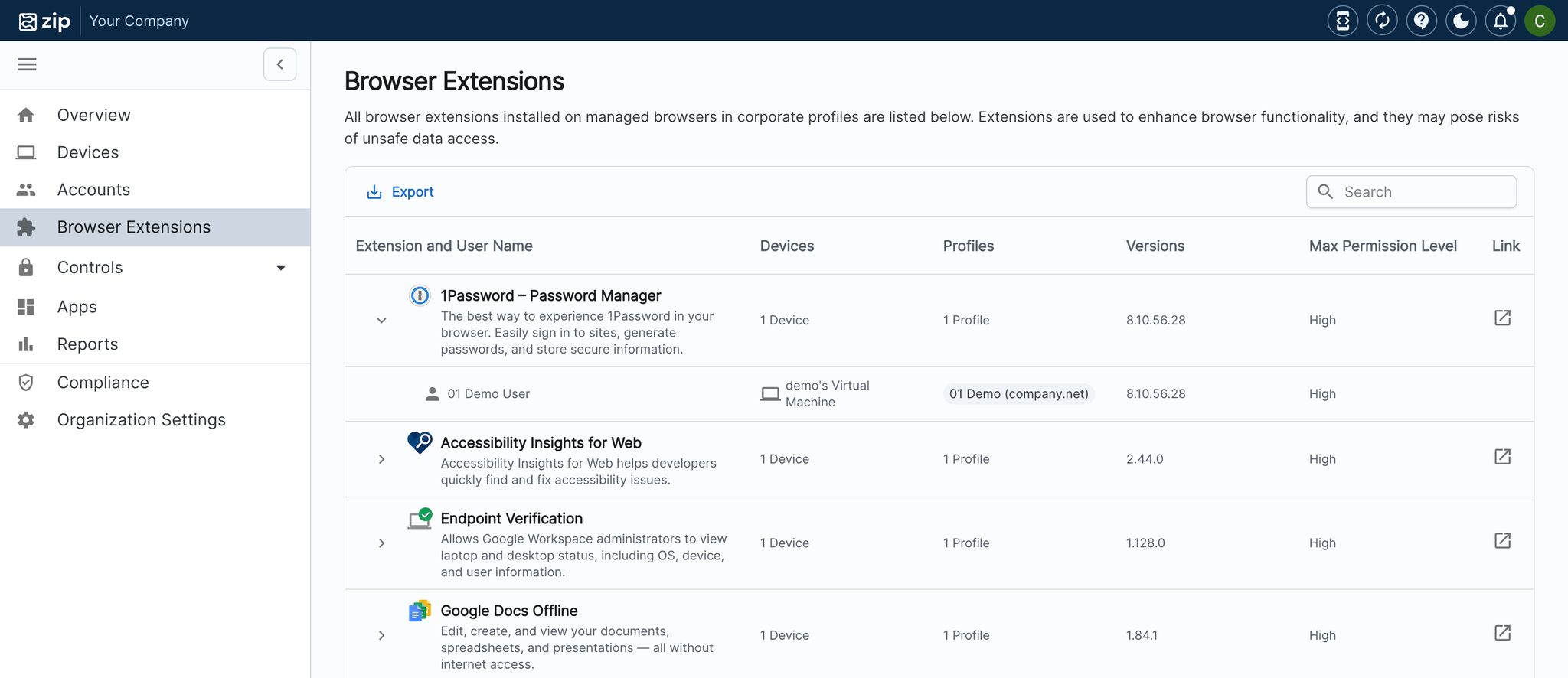
When the Chrome module is enabled, you will also see a new tab on the sidebar labeled “Browser Extensions”. This provides a centralized place where you can view all extensions that are in-use, who is using them, which versions they’re on, and what permissions they have.
Extensions Block List and Default List
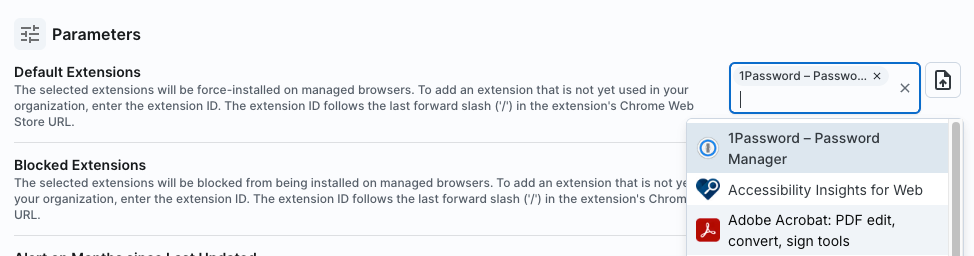
The Chrome Extension Management control will allow you to block unsafe extensions so that they cannot be installed on managed browsers or force install extensions that you expect every member of your organization to use (such as a password manager). To do this,
- Go to the ‘Configuration’ tab of the control, go down to the ‘Blocked Extensions’ or ‘Default Extensions’ parameter
- Select the extensions that you want to block. The list is populated from extensions that have been used in your organization.
- You can also block extensions that are not currently in use in your organization by finding them in the Chrome web store, copying the URL or the ID from the end of the URL, and then pasting the ID into the Blocked Extensions textbox.
- For example, if you wanted to block an extension with the URL https://chromewebstore.google.com/detail/chatgpt-sidebar-gpt-4-vis/becfinhbfclcgokjlobojlnldbfillpf, the ID would be
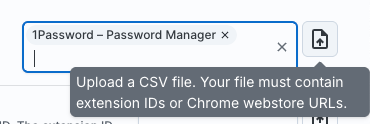
becfinhbfclcgokjlobojlnldbfillpfsince it follows the last/in the URL. Copy and paste the ID into the dropdown. - You can upload a .csv file to bulk add extensions to these parameters by clicking the file upload button next to the parameter. The file needs to have extensions’ IDs or Chrome web store URLs (described above).
Notes:
- Save your configuration, and the changes will go into effect onto any browsers that have had the Enforce Chrome extension management policies task run.
Adding context
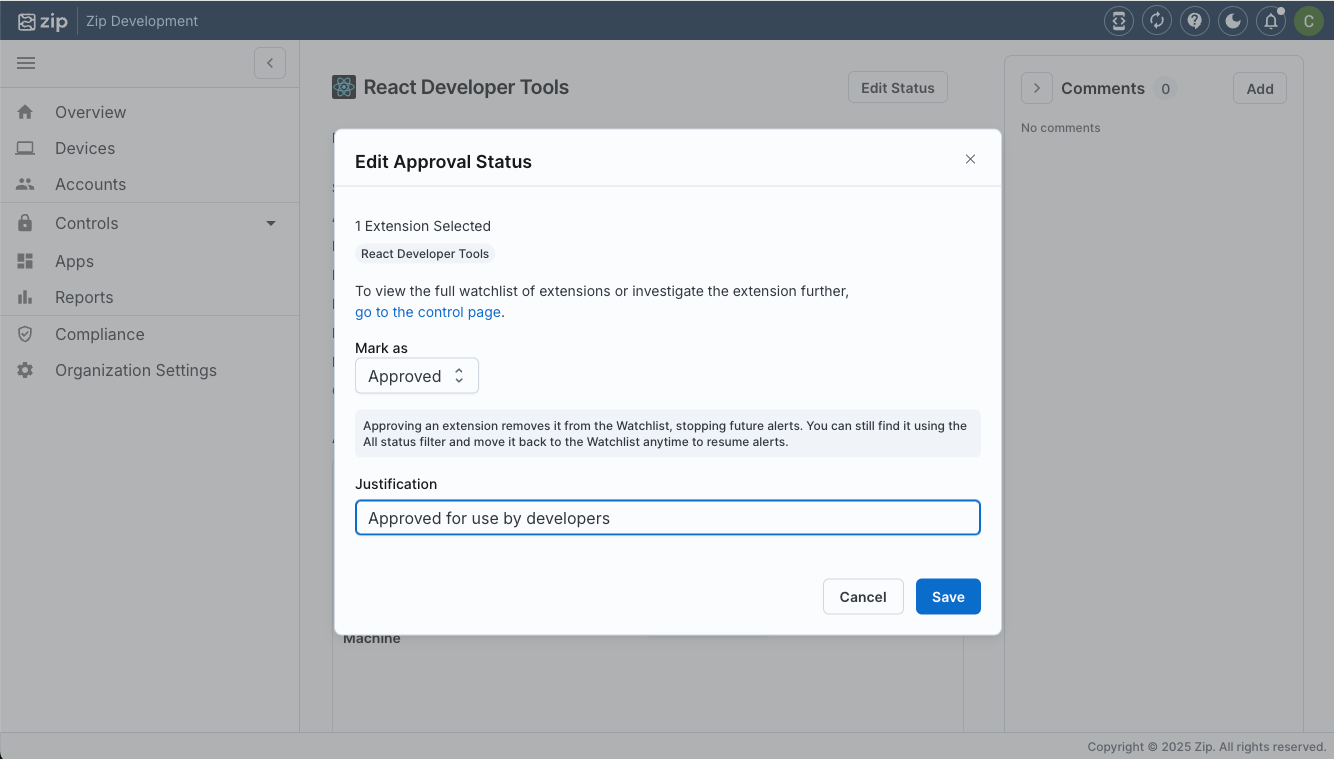
Aside from enforcing what extensions are used in browsers, you can also add context for your team in the Zip Console by marking extensions as Watchlist or Approved or by leaving comments.
To edit multiple extensions at once:
- On the Manage Chrome Extensions page, select the extensions in the table (you may want to adjust the filters to view all extensions).
- Click Edit Extension Status.
- Select the status and enter a justification which will appear as a comment.
- Click Save and the status and comment will be added to the extensions.
To view all details and comments:
- Click on an extension in the table. On this page you can view more information about the extension, who uses it, and what permissions it requires.
- Expand the Comments panel.
- Click Add in the comments panel, or Edit Status next to the extension name.
- Fill out the new comment and/or status.
- Click Save and the status and comment will be added to the extension.
What will end-users see?
Blocked Extensions
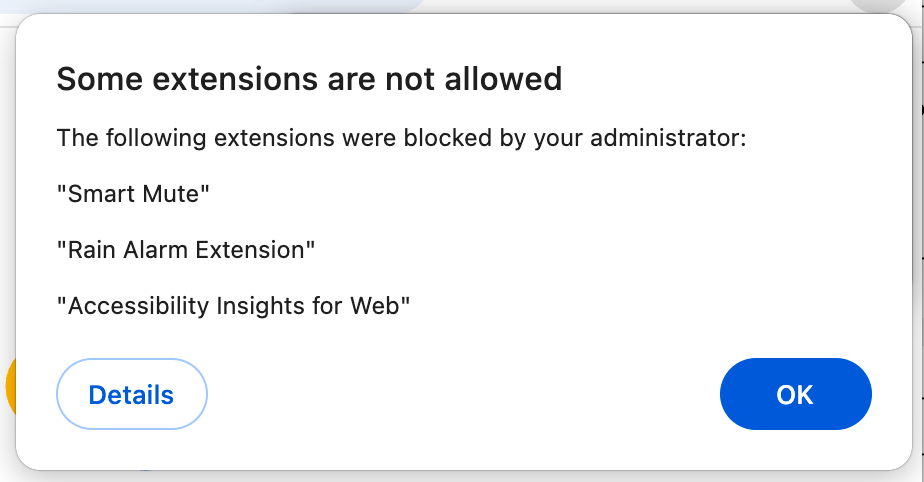
Users will get a popup under their Chrome extensions with a message that extensions were blocked by their administrator. Once confirming, they will be removed from their profile.
Chrome Browser Management
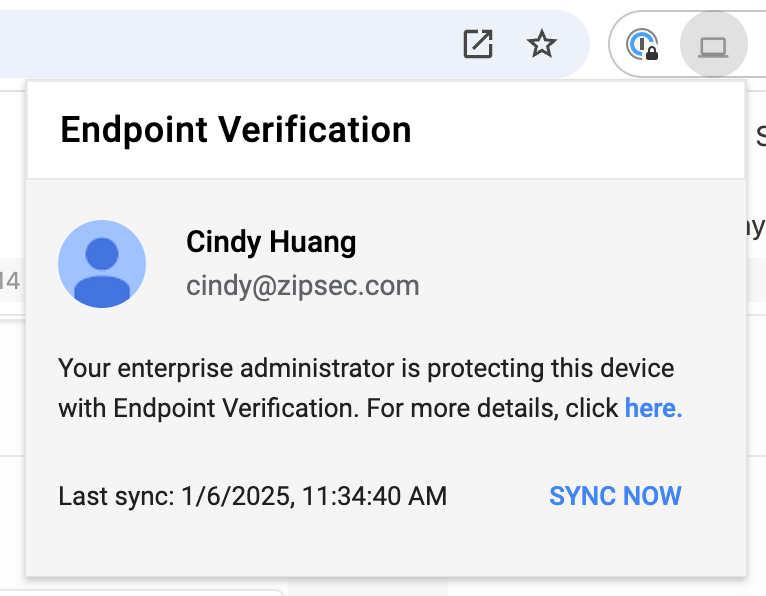
For managing Chrome browsers, the only change users may notice is that the Endpoint Verification extension is automatically added to their browser wherever the user’s corporate account is logged in. This allows us to report information about the device and browser.
Users will also see normal popups asking to relaunch their browsers to receive the latest update.