Overview
The Activation Lock control provides a solution to the challenge faced by IT-teams of dealing with Apple devices that have ‘Activation Lock’ turned on. This prevents them from recovering a wiped device without a past employee's authority. If not properly managed, returned laptops are at risk of being unusable, and resulting in a massive waste of money for a company. Additionally, there are security considerations with activation lock - a corporate device should be managed by an IT team, not by a individual, and actions like device locking and wiping should sit with the IT team, and not the individual.
The ‘Activation Lock’ control, that helps organizations ensure all Apple devices have activation lock disabled. It has 3 key features / allows a few things:
- Prevent activation lock from being turned on without preventing users from using personal imessage accounts
- Monitor Activation Lock Usage
- [As of May 12th, 2025] Automatically notify users to turn off activation lock
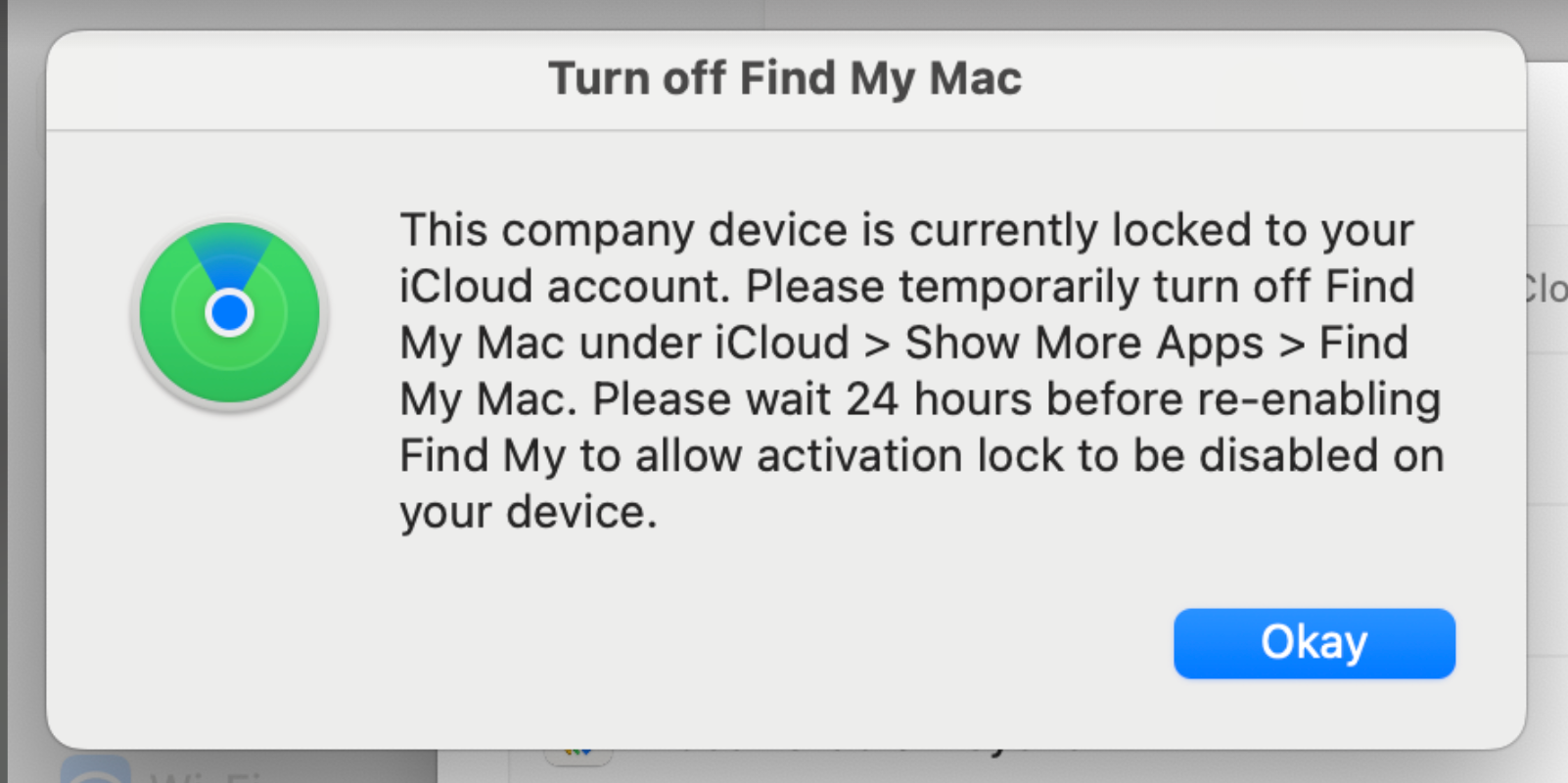
- Note - your users will need to temporarily turn off Find My to disable activation lock. They’ll be able to turn it back on after 24 hours.
Prior to May 12th, 2025 users of the Zip Console needed to send emails to users that had manual instructions on how to disable. This resulted in too much burden for both users of Zip and their end users, so we updated the behavior to directly prompt the end user.
Overview
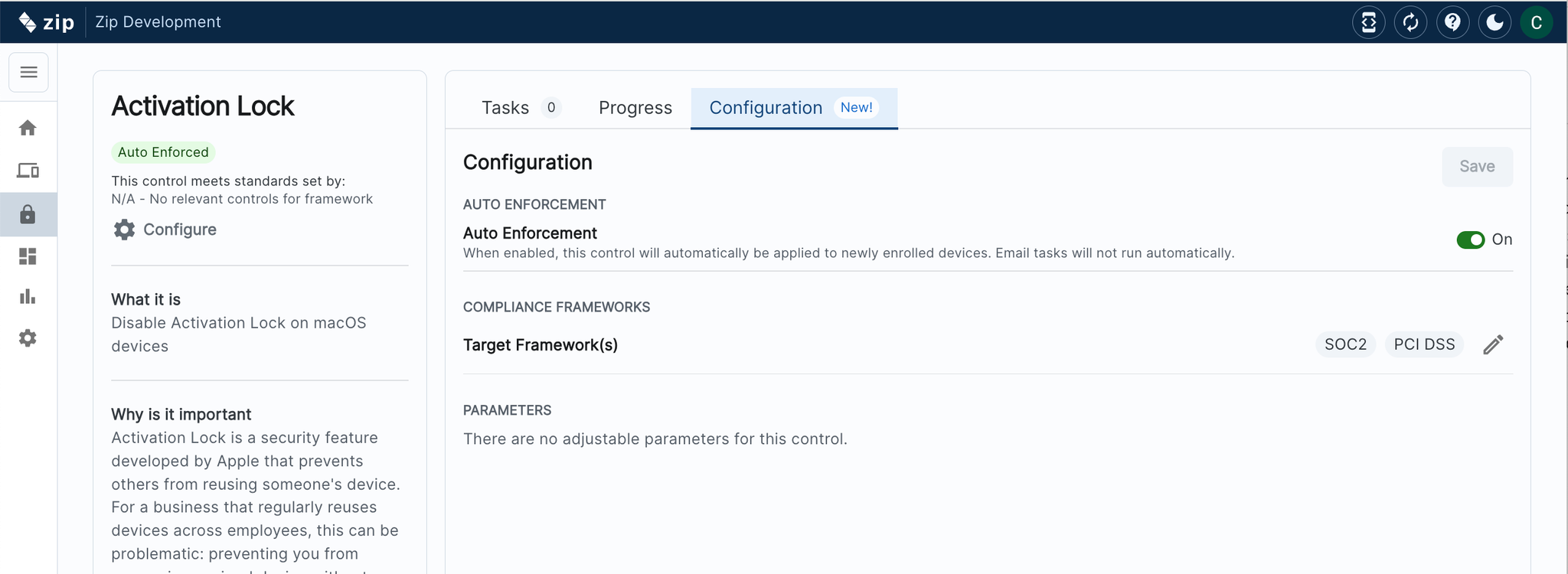
To Turn on Activation Lock Auto Enforcement:
- Navigate to https://zipsecinc.cc/modules
- Scroll down to the control ‘Activation Lock’.
- Navigate to the ‘Configuration’ tab and toggle Auto Enforcement to ‘On’
- You’re done!
For Non-Compliant Devices:
If any existing devices already have activation lock turned on, the Zip Console will automatically prompt users to disable activation lock. Users will be prompted once a day until activation lock is turned off.
The prompt looks like the one below: