When to use this
- A device in the Manage Chrome Browsers control has the state “Chrome managed but not all settings are properly enforced”.
- A device in the Manage Chrome Extensions control has the next step “There may be conflicting policies set on this device that are impacting its compliance status.”
Troubleshooting
Policies can be set on managed Chrome browsers using MDM or using the Google Admin Console. If the same policy has been set on a device multiple times with different values, then these values will conflict, and the policy that you set using Zip might not be applied properly.
First, ask the device user to open their Chrome browser and navigate to
chrome://policy/. We’ll walk through the first three sections: Status, Policies, and Policy Precedence.Status Section
At the top of the page, there will be a
Status section. Policies can be set on both the machine (device) level and the user level. Zip currently sets machine policies. Here, you can check how recently it fetched the latest policies, and how recently a status report has been sent to the cloud.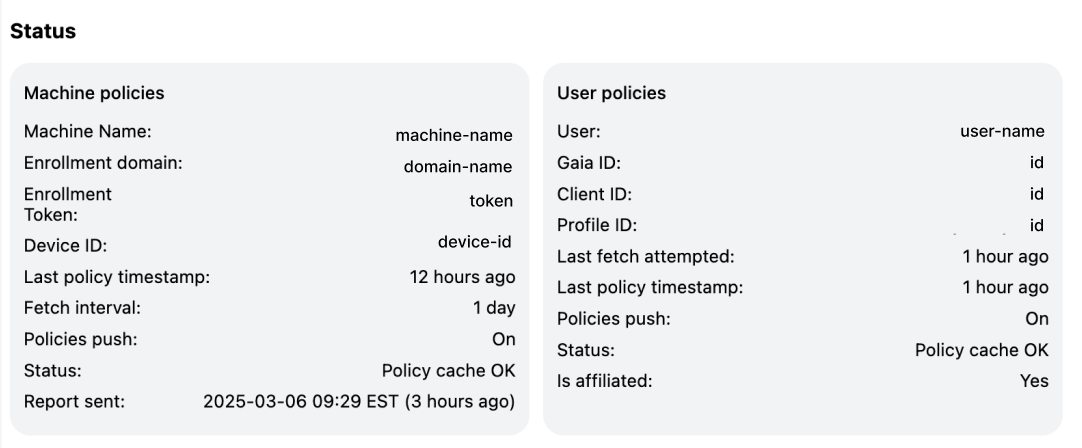
- If the policies have not been fetched recently enough, click the
Reload Policiesbutton on the top left.
- If the policies look correct but the status report has not been sent recently, then click
More Actions→Upload Report. Once you navigate back to the Zip Console, refresh the data to see if the device is now compliant.
Policies Section
The next section lists all of the policies set on the device. You’ll want to look into the policies that you expect to be there and check the values that are set and if there are conflicting values.
If a policy that you expect to be set does not appear in the list, then it’s not being set properly on the device.
Expected Policy Values
For the Zip Chrome management functionality to be successful, the following policies should be set:
CloudReportingEnabled:true
For the Manage Chrome Browsers control, the following policies should be set:
CloudManagementEnrollmentToken: Value should match an active enrollment token for your organization. You can find the tokens in the admin console here.- Note: Once a browser gets enrolled, it no longer matters what this value is or if the token gets revoked. This is only useful for debugging if the browser is not successfully getting enrolled.
SafeBrowsingProtectionLevel: Value should be1if you configured Safe Browsing to be active in the standard mode. Value should be2if you configured Safe Browsing to be active in the enhanced mode. If the value is0, then Safe Browsing is never active.
RelaunchNotification: Value should be1if you configured that relaunch for chrome updates is recommended and2if you configured that relaunch is required.
RelaunchNotificationPeriod: Value should match the number of milliseconds in the number of days that you configured in Zip. (86400000 * number of days)
RelaunchWindowis also set to dictate when Chrome should auto restart. This will not impact compliance. Please contact Zip if you’d like to change the value that is set here.
The policies Zip sets will have a
Source column of Platform and Applies to column of Machine.For the Manage Chrome Extensions control, the following policies should be set:
ExtensionInstallBlocklist: The value will vary based on the extensions that you have blocked. It might look like["blockedExtensionId;https://clients2.google.com/service/update2/crx"]or just["blockedExtensionId"], whereblockedExtensionIdis a random string of characters. Zip only looks at the ID that comes before the;, so don’t worry if yours looks slightly different.
ExtensionInstallForceList: The value will vary based on default extensions that you have configured to be installed. It might look like["forceInstalledExtensionId;https://clients2.google.com/service/update2/crx"]or just["forceInstalledExtensionId"]. Zip only looks at the ID that comes before the;, so don’t worry if yours looks slightly different.
The policies Zip sets will have a
Source of Cloud and Applies to MachineYou can look more into the extension IDs by navigating to their pages in the Chrome Web Store - add the extension ID to the URL
https://chromewebstore.google.com/detail/<insertExtensionIdHere>. For an extension that you already know the name of and want to find the ID for, navigate to its page in the web store, and then copy the text that trails the final / in the URL.Handling Unexpected Values
If the value for a policy does not match the expected value, check if the
Status column says Warning, Conflict. If so, there are multiple conflict values set for that policy. Click Show More.
The top-most value that is shown in the expanded section is the value that currently applies. The other values are also set, but they are not taking precedence.
If one of the other values matches what you expect to see, then the policy set in Zip is correctly being applied to the device, but you’ll need to remove the other policies that are being applied that are overriding it.
Policies with the source
Platform are set with MDM, and policies with the source Cloud are set in the Google Admin Console. You can navigate to the proper platform to locate and remove the conflicting policy. Policy Precedence
Policy precedence will also come into play here. If you scroll down on the page to the third section, you’ll see which policies apply ahead of others in the case of conflicts:
- Platform machine: Applied via MDM, applies to the device
- Cloud machine: Applied via Google Cloud, applies to the device
- Platform user: Applied via MDM, applies to the user who is logged into Chrome
- Cloud user: Applied via Google Cloud, applies to the user who is logged into Chrome
Questions?
Please reach out to info@zipsecinc.cc for additional help troubleshooting Chrome Browser Management.