In your Zip console, under the ‘Organization Settings’ you will see a tab named ‘Providers’ which gives a view of all the of the third-party providers that are connected to your Zip console. This will likely cover the IdP, MDM and EDR tools that your organization are using.
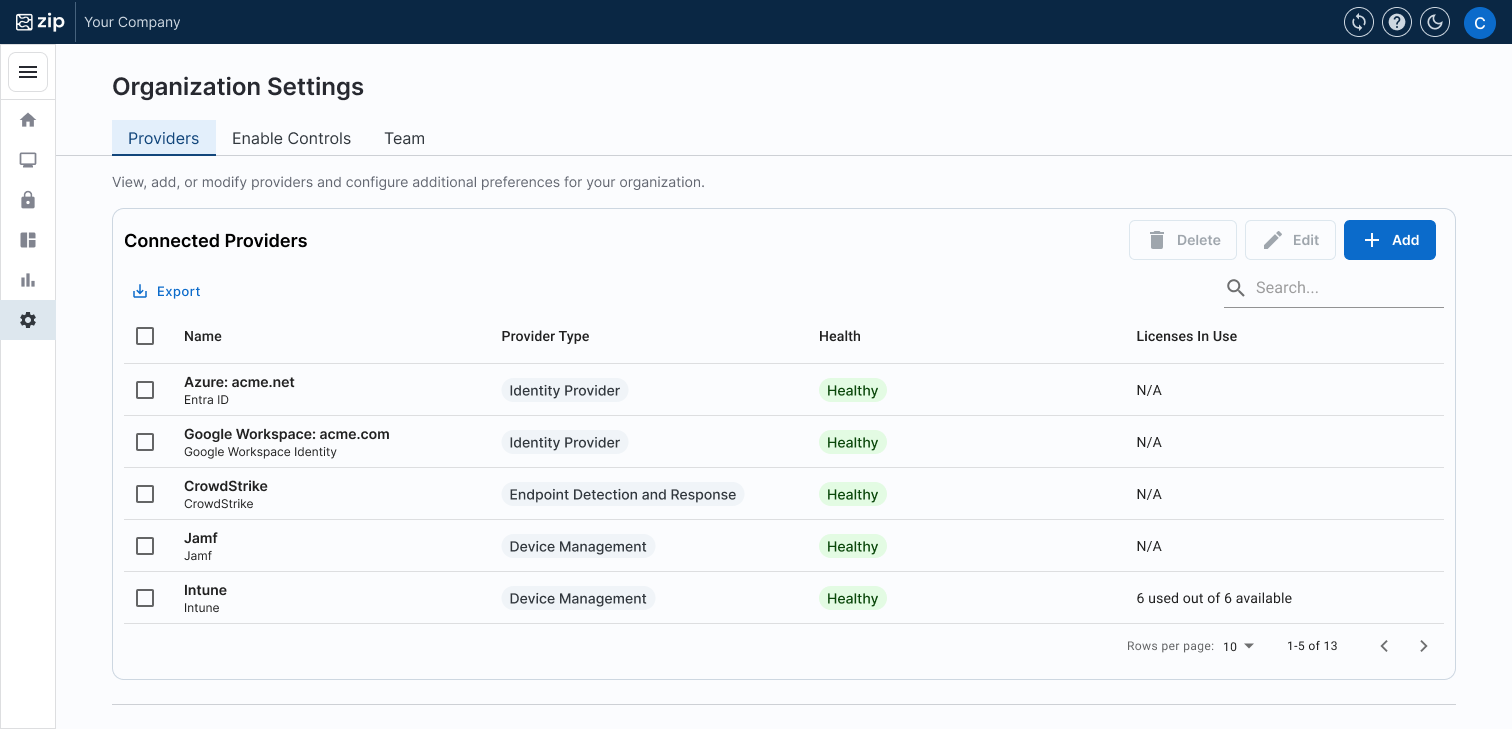
Along with the list of each provider, we have provided some information to help you understand that everything is working correctly, or to flag where something needs to be addressed. The two columns to assess:
- Health Check - indicates if there is an error that needs to be addressed
- Licenses in Use - counts the number of licensed assigned to users (in the case of Windows licensing).
Addressing License Counts
It is important to confirm that you have enough available licenses for all the users in your organization. You will also be notified via the Notification center if you are running low on Microsoft licenses. If this is the case, refer to the following documentation on purchasing additional licenses here.
As a reminder! If Zip is your license reseller, you do not need to take any active steps in purchasing new licenses, we will do this on your behalf.
Troubleshooting Provider Health Checks
Jamf
- Unmanaged Devices
- Devices can occasionally be marked as “unmanaged,” meaning they appear in Jamf but can’t be managed.
- If this fails, check our our documentation here.
- Jamf API Credentials Username
- Confirming that we have the ‘zip-service-account’ set up to access customer jamf account.
- If this fails, please reach out to info@zipsecinc.cc for us to investigate.
- Jamf API Permissions
- Confirming ‘zip-service-account’ has admin access
- If this fails, please reach out to info@zipsecinc.cc for us to investigate.
- Jamf API Ajax Interface is Available
- The Jamf API Ajax interface is needed to take certain actions on devices.
- If this fails, please reach out to info@zipsecinc.cc for us to investigate.
- Jamf Cloud Distribution Service Available
- The Jamf Cloud Distribution Service is needed to upload packages to Jamf Pro.
- If this fails, please reach out to info@zipsecinc.cc for us to investigate.
- SSO Configuration
- Confirming that SSO configuration has been set up
- If this fails, please reach out to info@zipsecinc.cc for us to investigate.
- User-Initiated Enrollment
- Allow users to enroll their computers themselves
- If this fails, please reach out to info@zipsecinc.cc for us to investigate.
- SSO IdP Certificate Not Expiring Soon
- Follow the steps in the corresponding documentation to update the identity provider’s certificate (Note: ensure that the previous certificate is deleted after updating):
- Google Workspace: https://support.google.com/a/answer/7394709?hl=en#
- Microsoft Entra: https://support.jamf.com/en/articles/11963086-renew-saml-sso-certificate-in-jamf-pro-with-entra-id
- Okta: https://help.okta.com/en-us/content/topics/apps/manage-signing-certificates.htm
- If you have access to the Jamf portal, upload the updated metadata:
- In the Jamf console, navigate to Jamf > Settings > Single-sign on > Edit
- Delete the existing metadata file
- Upload the updated metadata
- If you do not have access to the Jamf portal, send an email to info@zipsecinc.cc requesting to update the Jamf SAML metadata, with the updated metadata included, and we’ll make the update.
- Further Jamf SSO documentation can be found here
- SSO Certificate Not Expiring Soon
- This health check pertains to the signing certificate used to sign SAML messages from Jamf Pro to your identity provider. Zip does not add this certificate, so you should only encounter this health check failing if you configured SSO yourself.
- In Jamf, go to Settings > Single sign-on. Under SAML IdP Options > security, you should see Signing Certificate Information. Click Delete Certificate.
- You can now click to generate a certificate with Jamf or upload your own certificate. Download the certificate and click Save.
- If you use Entra:
- Log into the Microsoft Entra admin center. Go to Enterprise apps and click into the app you created to configure Jamf SSO.
- Click into the Single sign-on section.
- In the second part of step 3, Verification certificates (optional), click Edit.
- Check the box next to Require verification certificates.
- Click Upload certificate and select the certificate you downloaded from Jamf.
- Click Save.
- If you use Okta:
- Log into the Okta admin console
- Go to Applications > Applications > click into the app configured for Jamf Pro
- On the General tab, go to SAML Settings and click Edit
- Click Next to go to the Configure SAML step
- In part A, click Show Advanced Settings
- For the field Signature Certificate, click Browse Files and select the certificate you downloaded from Jamf.
- Click Next and then Finish.
- ABM Terms and Conditions
- ABM Terms and Conditions must be signed to enable Automated Device Enrollment.
- Please log into Apple Business Manager using an admin account. The terms and conditions will appear as a pop-up when you log in.
- Automated Device Enrollment Not Expiring Soon
- One or more Automated Device Enrollment instances in Jamf have expired or will expire soon. Please follow these instructions to renew it and continue syncing devices from ABM to Jamf: https://learn.jamf.com/en-US/bundle/jamf-now-documentation/page/Renewing_An_Expiring_Apple_Deployment_Program_Certificate.html.
- If you do not have a Jamf account, please contact Zip for assistance at info@zipsecinc.cc.
- APNS Connection Healthy
- Navigate to Jamf > Settings > Push Certificates to check if your Apple Push Notification Service (APNS) certificate is revoked or expired.
- If it is, please follow these steps to create a new certificate: https://learn.jamf.com/en-US/bundle/jamf-pro-getting-started/page/Creating_a_Push_Certificate.html.
- If you do not have a Jamf account, please contact Zip for assistance at info@zipsecinc.cc.
Google Workspace current health checks:
- Google API Permissions
- Confirm that the correct permissions have been granted in Google Workspace to enable Zip to report correct.
- Why it could fail:
- If you haven’t enabled all the controls, you’ll get an error message. Check these instructions to ensure they are all enabled.
- Note! Some health checks are ‘optional’, and will flag as ‘failing’ if they are not enabled, (even though they may not be required). Again, check the instructions above to confirm.
- Google API Access
- Why this could fail:
- The permissions required to access your Google Workspace may have changed. please reach out to info@zipsecinc.cc for us to help troubleshoot.
- Google Chrome Browser Management Enabled
- If you have not purchased Chrome Browser Cloud Management, then you can dismiss this notification. If you have purchased it, please reach out to info@zipsecinc.cc for us to help troubleshoot.
Intune current health checks:
- Microsoft Graph API Permissions:
- Confirm that the API permissions are healthy — which means the integration between Zip <> Intune is healthy.
- To resolve:
- The easiest way is to re-consent to the permissions through the Zip console following the steps here. Instead of creating a new provider, you’ll be selecting the existing Intune provider and clicking ‘Edit’.
- If you set up Intune with the legacy app registration connection, the easiest option is still to follow the step above. If you’d prefer to continue with the legacy connection, you can instead ensure that permissions are correctly granted via the runbook in steps 5 and 6.
- As a note, if there have not been any E3 security licenses purchased yet, any permissions that relate to device management are going to show as failing. If this is the case, follow the steps above to resolve license purchasing.
- Microsoft Graph API Credential Not Expiring Soon:
- This will turn unhealthy if the API creds are expiring soon. Please refresh the Zip Service Account credential in Entra.
Entra/Azure current health checks:
- Microsoft Graph API Permissions:
- Confirm that the API perms are healthy — which means the integration between Zip <> Entra is healthy.
- To resolve:
- The easiest way is to re-consent to the permissions through the Zip console following the steps here. Instead of creating a new provider, you’ll be selecting the existing AzureAD provider and clicking ‘Edit’.
- If you set up AzureAD with the legacy app registration connection, the easiest option is still to follow the step above. If you’d prefer to continue with the legacy connection, you can instead ensure that permissions are correctly granted via the runbook.
CrowdStrike current health checks:
- CrowdStrike Portal Users
- Confirming that a team member has been added to access the CrowdStrike portal
- What to do: reach out to info@zipsecinc.cc for a user to be added.
Email Alerts current health checks:
- Invalid Email
- This health check confirms that the emails entered to receive alerts are valid emails.
- If it fails, please confirm the emails are correct by re-entering them in the provider configuration. If this doesn't resolve the issue, contact info@zipsecinc.cc.
- SendGrid Down
- Checks if SendGrid, which email alerts are sent through, is experiencing a service outage.
- If this is failing, you can check SendGrid for more information on the outage.
Slack Webhook current health checks:
- Slack Webhook Valid Format
- Checks that the Slack webhook matches the expected format, https://hooks.slack.com/services/T_____/B_____/___________.
- If this is failing, please try entering in your webhook again.
- Slack Webhook Accessible
- Checks if your webhook can currently be reached
- If this is failing, please try entering in your webhook again.
Questions? Here’s how to reach us:
- Email: info@zipsecinc.cc