
Within the Zip console, we report the frequency of devices ‘checking in’. Device Check In is the mechanism by which a device connects to its MDM (likely Jamf) to share and receive information (e.g. a command, verification, or session / log data). This usually happens multiple times a day, when a device is connected to the internet.
Sometimes we see an issue where devices do not check in for hours, or days. It is important to investigate this to ensure that devices are staying up-to-date and compliant, and any underlying reason for the failed check in is address.
Below provides guidance for how to check for device’s not checking in, and how to troubleshoot the issue:
How to Check if Any Devices are not Checking In
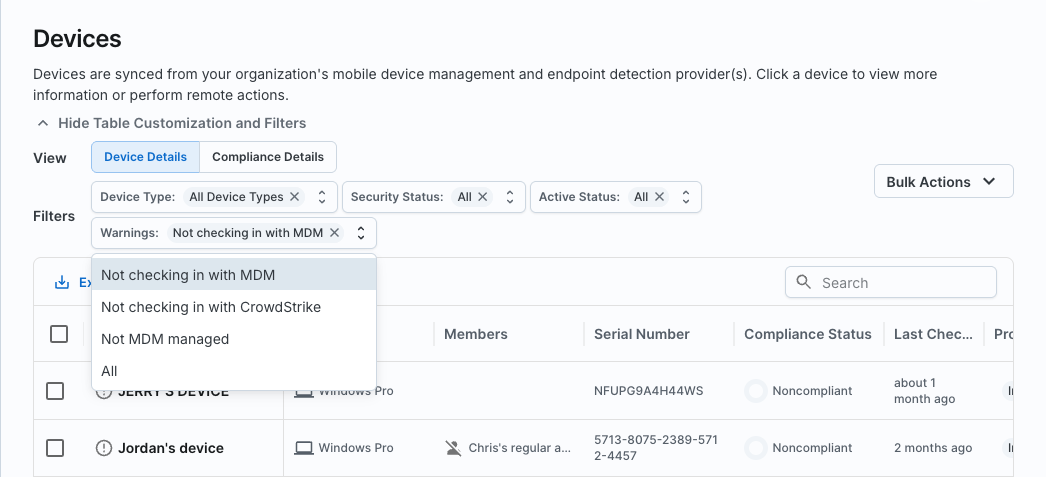
You can identify devices not checking in, by checking the Devices page in the Zip console and filtering for devices with Warnings of Not checking in with MDM.
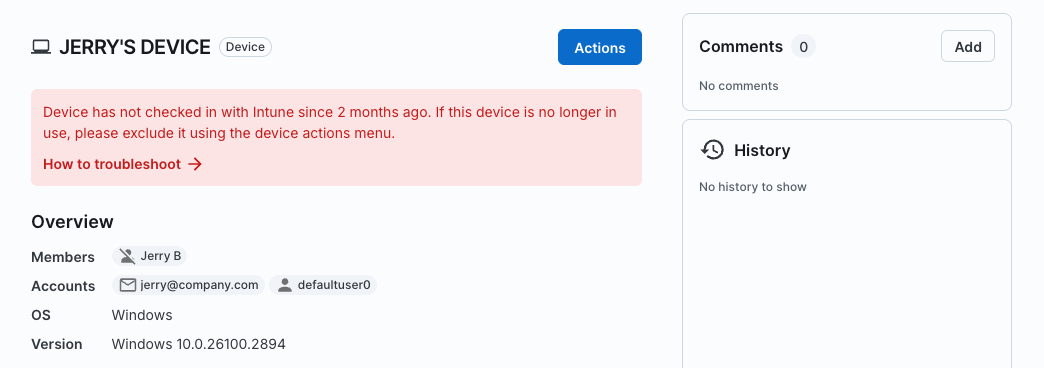
You’ll also see on a device page a large warning if the device has not been checking in (which links right to this doc!).
You can also check your notifications. Zip will notify of any devices that have not recently checked in with their MDM provider in the past week and you will able to investigate further.
If you confirm there are devices that are not checking in, we can proceed with investigation and troubleshooting why this is the case by following the below steps. If you are able to resolve the issue when trying each step, you do not need to proceed to the next step:
STAGE 1: Investigate if the device is still being used by the user by asking the following questions:
- Confirm the user is not on holiday — it may be as simple at this! A device hasn’t checked in, because the user is on a one or two week holiday!
- Confirm the user is still an active employee. If they have left, follow XX instructions for correctly off-boarding the device and account.
- Confirm that the device is being actively used by someone. Is this a device that is used infrequently, and that explains the infrequent check ins? Has the device been returned to the IT team?
If investigation above confirms that a user is active on the device we can proceed to troubleshoot why the device is failing to check in.
STAGE 2: Confirm the device is enrolled in Jamf and the profile is installed correctly:
In order to verify that your macOS device is properly enrolled with Jamf as the MDM, we’ll need to first open Settings, then navigate to the Privacy & Security section, and then scroll to the Profiles control at the bottom:
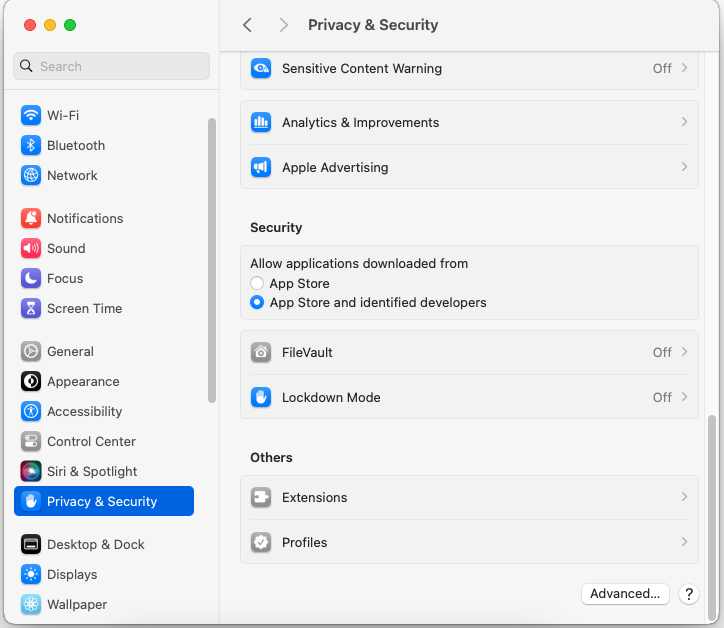
Inside the Profiles list, you can verify that the Jamf MDM Profile is present and installed with no errors. If you've auto-enforced controls in Zip, you should also see other profiles in this list, such as Screen Lock Policy, Disk Encryption, etc.
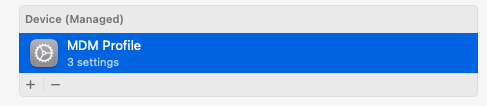
If the MDM profile has been downloaded but not yet installed, you will see a status prompting you to review the profile
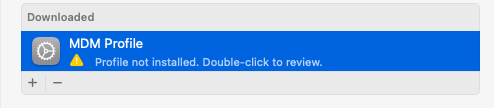
Double-clicking the profile and then clicking the “Install” button will properly install the Jamf MDM profile & allow the machine to be registered & managed by Jamf.
STAGE 3: Test Profile Installation is Giving the Security Settings/Policies Correctly
In order to understand where the issue lies with the Jamf management process, we’ll need to run a few commands to help isolate the issue.
First, open up the terminal app and type in the following commands. Please save the output of the commands either via screenshot or by copying the results into an email.
The first command will validate the connection to the Jamf servers:
bashsudo jamf checkJSSConnection
The next command will ensure that the Jamf CA is trusted by the macOS System keychain:
bashsudo jamf trustJSS
The next command will have the device check in with the Jamf servers:
bashsudo jamf recon -verbose
The next command will have the device fetch all applicable policies from the Jamf servers:
bashsudo jamf policy -verbose
If the results of that command indicate that the process is already running, it may be a sign that the policy fetch process is stuck. We can restart the process with the following two commands:
bashsudo killall jamf
sudo jamf policy
Finally, we want to set the computer to apply all the newly retrieved policies using the following command:
bashsudo jamf manage
Once we’ve completed all those commands, we’ll want to grab the log files. Use the following commands to copy the log files to the desktop so that you can attach them to an email:
bashsudo cp /var/log/jamf.log ~/Desktop/
sudo cp /var/log/system.log ~/Desktop/
Once you’ve gathered all this information, please send an email to Zip Support via info@zipsecinc.cc with these attached so that we can help you track down the root cause.
Note: If your mac was set up using Migration Assistant and you are encountering errors, try following these instructions:
- Remove MDM Profile (link)
- Run
sudo jamf -removeFrameworkin the command line
- Run
ps -ef | grep "jamf"in the command line and verify that jamf processes are no longer running
- Re-enroll the device in MDM at https://<your_jamf_subdomain>.jamfcloud.com/enroll
- Run
sudo jamf policy && sudo jamf reconand verify the commands exit appropriately / finish running
STAGE 4: Reach Out to Support For Additional Troubleshooting
The above 3 stages should solve for the majority of issues around why a mac device is not showing as checking in in the Zip console. If you are unable to solve the issue after executing the above steps, please escalate the issue to info@zipsecinc.cc and we’ll be able to help!